Summarise thousands of rows in seconds. Build pivot tables, understand the pivot cache and the four areas, change value field settings, show values as % of total, MoM and YoY change and running totals, group dates and numbers into bins, add calculated fields, slicers and timelines, and solve the Video Game Sales case study.
● Live classes 5–7✦ Excel for Microsoft 365, 2026Intermediate⏱ 150 min
A pivot table groups rows by one or more fields and summarises a number for each group (sum, count, average…). It is the fastest way to answer "how much, by what?" questions, with no formulas.
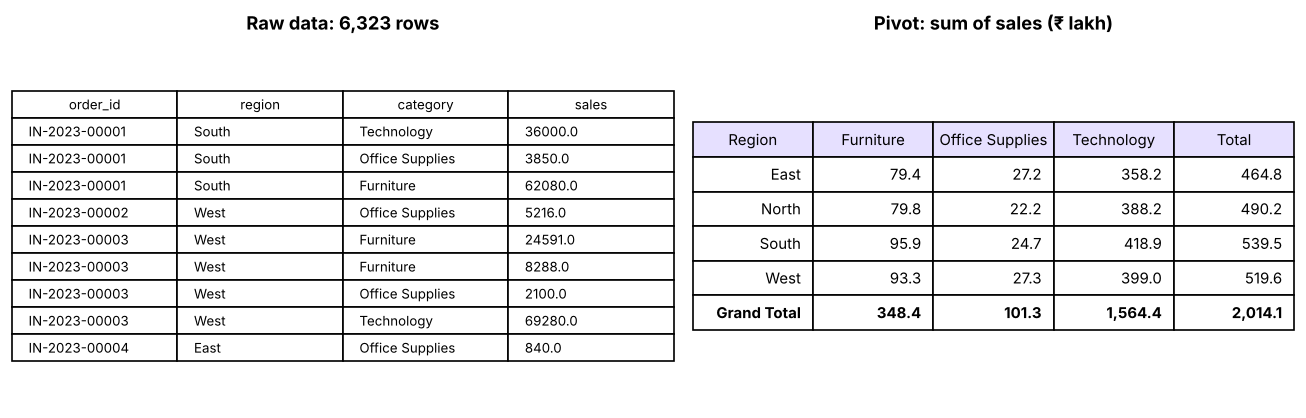
A pivot table turns thousands of order lines into a compact summary: rows grouped by Region, columns by Category, values summed.
Creating a pivot table
Step by stepStep by step
Make sure the data is structured (Lesson 1): one header row, no blank rows, no merged cells. Ideally convert it to a Table (Ctrl + T) so new rows are included automatically.
Click any cell in the data → Insert → PivotTable (or Alt, N, V).
Choose New Worksheet → OK. An empty pivot appears with the PivotTable Fields pane on the right.
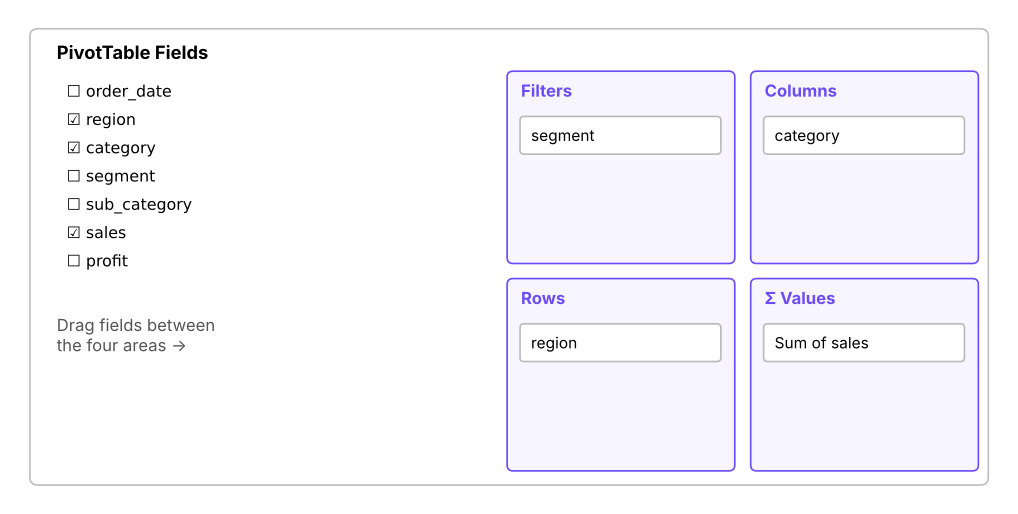
Drag fields into the four areas: drag region to Rows, category to Columns, sales to Values.
Right-click any number → Number Format → #,##0 so the format sticks when the pivot refreshes.
The PivotTable Fields pane: a list of fields at the top, four areas at the bottom.
Area
What it does
Example
Rows
One row per unique value
Region, Category, Order Date
Columns
One column per unique value
Year, Segment
Values
The numbers being summarised
Sum of Sales, Count of Order ID
Filters
Filter the whole pivot by a field
Segment = Corporate
The pivot cache, Refresh and Refresh All
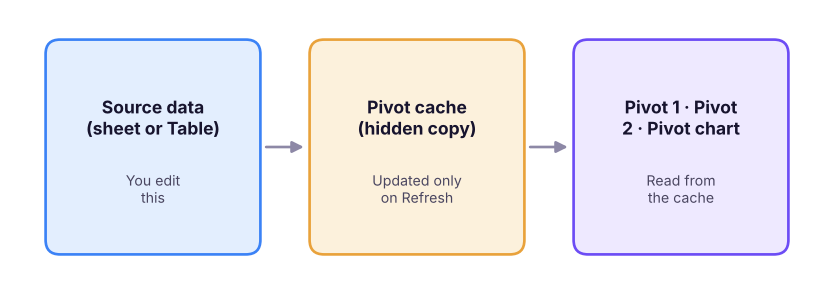
A pivot table does not read your sheet directly. When you create it, Excel copies the data into a hidden pivot cache, and the pivot reads from that cache. This is why pivots are fast, and also why they do not update automatically when the data changes.
Every pivot reads from a cache. Pivots made from the same data share one cache.
Action
Shortcut
Effect
Refresh
Alt + F5
Re-reads the source into this pivot's cache. Every pivot that shares the same cache updates too
Refresh All
Ctrl + Alt + F5
Refreshes every pivot cache, query and data connection in the workbook
Change Data Source
PivotTable Analyze tab
Point the pivot to a bigger range (unnecessary if the source is a Table)
Refresh on open
PivotTable Options → Data
Refreshes automatically when the file opens
TipUse a Table as the source
If the source is a Table, new rows are included the next time you refresh. If the source is a fixed range like A1:R6324, new rows below are ignored until you change the data source.
Value field settings
Click a field in Values → Value Field Settings (or right-click a number).
Summarize values by
Sum, Count, Average, Max, Min, Product, Count Numbers, StdDev, Var. Text fields in Values are counted automatically. Distinct Count appears only when the pivot is added to the Data Model (tick "Add this data to the Data Model" when creating it; Lesson 12).
Show values as
This tab turns a plain sum into an analytical view without writing formulas.
Show values as
Answers
Example
% of Grand Total
What share of the whole?
Furniture = 22% of all sales
% of Column Total
Share within each column
Within 2025, North = 31%
% of Row Total
Mix within each row
In the West, 46% of sales are Technology
% of Parent Row Total
Share within a parent group
Each sub-category's share of its category
Difference From (previous)
Change from the previous item
MoM or YoY change in ₹
% Difference From (previous)
Growth rate
MoM % or YoY %
Running Total In
Cumulative total
Year-to-date sales
Rank Largest to Smallest
Position
Top-selling region = 1
Index
Relative importance
Above 1 = over-represented
Here are three of these views on the Superstore data (computed with pandas to show the exact numbers a pivot would give):
Python
import pandas as pd
s = pd.read_csv("superstore_sales.csv", parse_dates=["order_date"])
pv = s.pivot_table(index="region", columns="category", values="sales", aggfunc="sum")
pct_total = (pv / pv.values.sum() * 100).round(1)
pct_row = (pv.div(pv.sum(axis=1), axis=0) * 100).round(1)
print("Sum of sales (₹):"); print(pv.round(0).astype(int).to_string())
print("\n% of grand total:"); print(pct_total.to_string())
print("\n% of row total (category mix inside each region):"); print(pct_row.to_string())
Output
Sum of sales (₹):
category  Furniture  Office Supplies  Technology
region
East        7942092          2719513    35822514
North       7975868          2219542    38822750
South       9593302          2468888    41890579
West        9330590          2725360    39902570

% of grand total:
category  Furniture  Office Supplies  Technology
region
East            3.9              1.4        17.8
North           4.0              1.1        19.3
South           4.8              1.2        20.8
West            4.6              1.4        19.8

% of row total (category mix inside each region):
category  Furniture  Office Supplies  Technology
region
East           17.1              5.9        77.1
North          16.3              4.5        79.2
South          17.8              4.6        77.6
West           18.0              5.2        76.8
MoM and YoY
Month-on-month (MoM) compares each month with the previous month; year-on-year (YoY) compares a period with the same period last year (which removes seasonality, such as the festive Q4 peak).
Step by stepMoM % in a pivot
Put order_date in Rows and group it by Years and Months (see Grouping below).
Add sales to Values twice.
On the second copy: Value Field Settings → Show Values As → % Difference From → Base field: order_date (Months) → Base item: (previous).
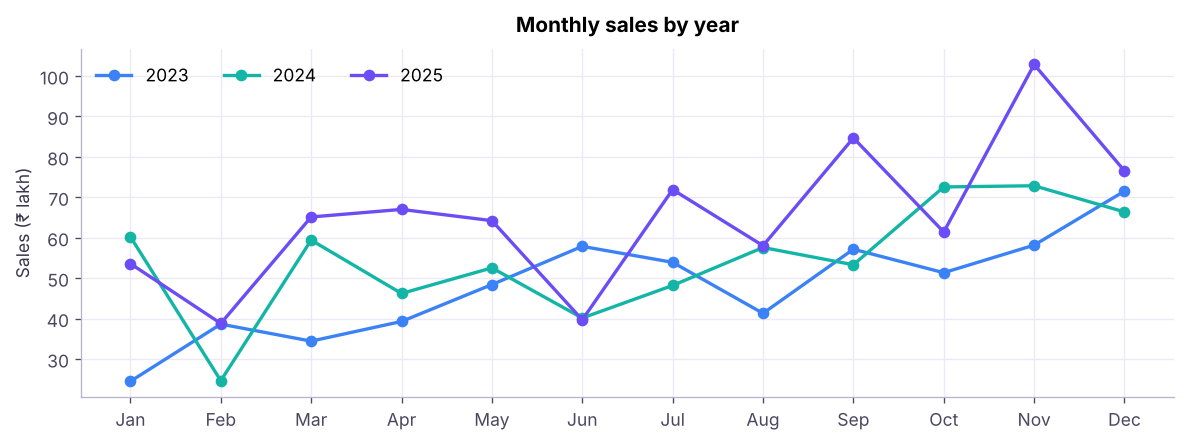
Monthly sales with YoY growth. The festive season (Oct–Dec) peaks every year, so YoY is a fairer comparison than MoM.
In formulas, the same calculations are: MoM % =(C3-C2)/C2, YoY % =(C14-C2)/C2 when months are listed one per row.
Grouping
Group dates
Right-click a date in Rows → Group → choose Years, Quarters, Months (and Days, Hours if needed). Excel 365 groups dates automatically when you drag a date field to Rows; you can ungroup with right-click → Ungroup.
TipIndian financial year
Pivot grouping uses calendar quarters (Jan–Mar = Q1). For an April–March financial year, add helper columns to the data first: FY = YEAR(date)+(MONTH(date)>=4) and FQ = "Q"&ROUNDUP(MOD(MONTH(date)-4,12)+1)/3,0), or use CHOOSE (Lesson 7), and put those in the pivot.
Group items manually
Select several labels (hold Ctrl) → right-click → Group. Excel creates a new field such as Product2 with a group called Group1; rename it (for example "Low Sales Products"). This is how you combine the three lowest-selling products into one line, or merge small cities into "Others".
Groups vs bins
Groups
Bins
What
Segregate items into chunks based on a common behaviour or criteria
Split a numeric field into equal-width intervals
Size
Can be any size
Every bin has the same width
Works on
Text, dates and numbers
Numbers
Example
"Metro" vs "Non-metro" cities
Order value 0–5,000, 5,000–10,000 …
To bin numbers: put the number field (for example sales) in Rows → right-click → Group → Starting at 0, Ending at 50,000, By 5,000. Then put order_id in Values as a Count.
Python
bins = pd.cut(s.sales, range(0, 55000, 5000), right=False)
dist = s.groupby(bins, observed=False).size().to_frame("Count of order lines")
dist.index = [f"{int(i.left):,}–{int(i.right - 1):,}"for i in dist.index]
dist
Output
Count of order lines
0–4,999
2530
5,000–9,999
829
10,000–14,999
473
15,000–19,999
423
20,000–24,999
238
25,000–29,999
172
30,000–34,999
177
35,000–39,999
202
40,000–44,999
61
45,000–49,999
92
10 rows × 1 columns
Most order lines are small; a few very large ones (machines, copiers) form the long tail. This is a frequency distribution, the pivot-table version of a histogram (Lesson 10).
Layout, subtotals and grand totals
The Design tab controls how the pivot looks:
Setting
Options
Tip
Report Layout
Compact (default), Outline, Tabular
Tabular + Repeat All Item Labels gives a flat table you can copy and reuse
Subtotals
Don't show, at bottom, at top
Turn off for exports
Grand Totals
On for rows/columns, off
Off when sharing a percentage view
Blank Rows
Insert after each item
Easier to read printed reports
Expand / Collapse
+/− buttons, or right-click → Expand/Collapse entire field
Drill from Category down to Sub-category
Show Details
Double-click any number
Opens a new sheet with the rows behind that number: great for auditing
Parent total: when two fields are in Rows (Category → Sub-category), "% of Parent Row Total" shows each sub-category's share of its own category.
Sorting and filtering inside a pivot
Sort: right-click a value → Sort → Largest to Smallest.
Value filter / Top 10: Row Labels drop-down → Value Filters → Top 10 → change to Top 5 Items by Sum of sales. This is how you answer "Find the top 5 categories".
Slicers: PivotTable Analyze → Insert Slicer → pick fields (Region, Segment). Slicers are clickable buttons that filter the pivot and show what is selected. Right-click a slicer → Report Connections to control several pivots with one slicer (they must share the same cache).
Timeline: Insert Timeline on a date field to filter by years, quarters, months or days with a slider.
Calculated fields
A calculated field creates a new value field from other fields in the pivot: PivotTable Analyze → Fields, Items & Sets → Calculated Field.
Example: Profit Margin = profit / sales, formatted as a percentage.
Watch outCalculated fields work on totals
Excel calculates the field on the sums: Profit Margin for the North = total North profit ÷ total North sales. That is correct for ratios. But a calculated field like =quantity * price would multiply the sum of quantity by the sum of price, which is wrong. Add such row-level calculations as a new column in the source data instead.
When you type = and click a cell inside a pivot, Excel writes GETPIVOTDATA, for example =GETPIVOTDATA("sales",$A$3,"region","North"). It keeps returning North's sales even if the pivot layout changes. Turn it off in PivotTable Analyze → Options → Generate GetPivotData if you prefer normal references.
PivotChart (PivotTable Analyze → PivotChart) creates a chart linked to the pivot: filtering the pivot or clicking a slicer updates the chart. This is the basis of the dashboard in Lesson 11.
Case study: Video Game Sales (regional sales trends)
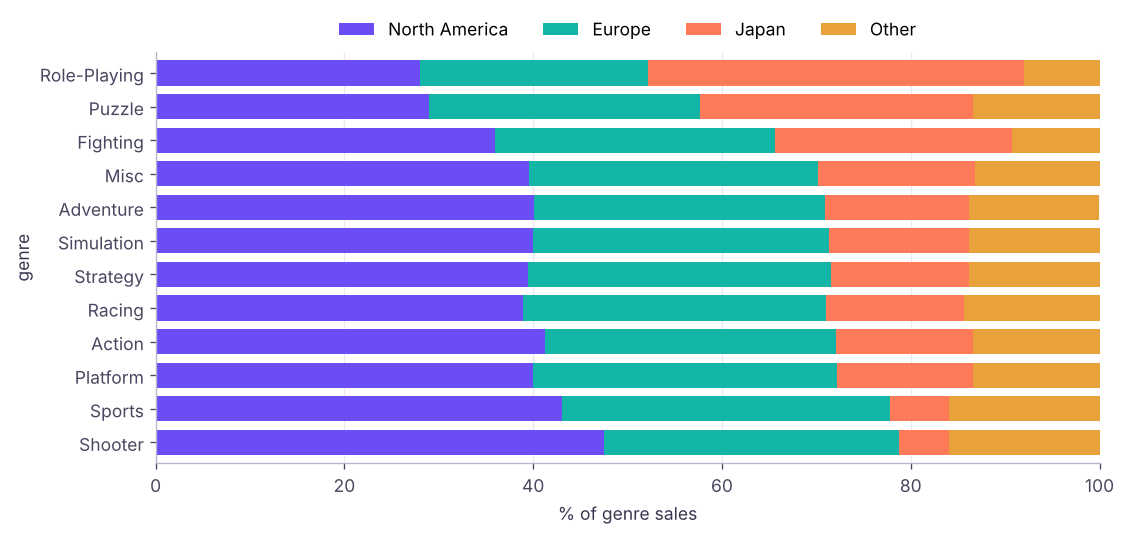
You are an analyst at a game publisher. The file video_game_sales.csv has 2,400 fictional titles with platform, release year, genre, publisher and sales in millions of units by region: North America (na_sales), Europe (eu_sales), Japan (jp_sales), other regions and global. Answer the questions with pivot tables. The answers below were computed from the file so you can check your pivots.
Python
g = pd.read_csv("video_game_sales.csv")
print(g.shape); g.head(4)
Output
(2400, 11)
rank
name
platform
year
genre
publisher
na_sales
eu_sales
jp_sales
other_sales
global_sales
0
1
Hidden Kingdom
XSX
2023
Sports
Red Lantern Studios
3.69
2.62
0.29
0.87
7.47
1
2
Galactic Kingdom
PS5
2020
Adventure
Saffron Works
3.49
1.79
0.74
0.94
6.96
2
3
Galactic League
Mobile
2017
Strategy
Red Lantern Studios
3.08
2.44
0.57
0.67
6.76
3
4
Shadow League
Mobile
2025
Role-Playing
Northwind Play
1.66
2.12
2.33
0.63
6.74
4 rows × 11 columns
Case studyQ1. Which genres sell the most worldwide?
Pivot: Rows = genre, Values = Sum of global_sales, sorted largest to smallest.
Write 3–5 sentences of insight, not just tables. For example: which genres to prioritise for the Japanese market, which publishers are efficient (high sales per title), and how platform transitions show in the year trend. Keep every number traceable to a pivot.
Summary
Key takeaways
Pivot tables summarise structured data by dragging fields into Rows, Columns, Values and Filters.
They read from a pivot cache: Refresh updates one cache; Refresh All updates everything. Use a Table as the source.
Value Field Settings: change the function (Sum, Count, Average…) and Show Values As (% of total, % of row, difference from previous, running total, rank).
MoM = change from the previous month; YoY = change from the same period last year.
Group dates (years/quarters/months), group items manually, and group numbers into equal bins.
Calculated fields work on totals, so use them for ratios like margin; add row-level maths to the source data.
Slicers and timelines make pivots interactive; double-click a number to see the rows behind it.
Quick quiz6 questions · tap an answer to check it
1. You add 500 rows to the source range, but the pivot does not change. Why?
Answer: B. Refresh re-reads the source. If the source is a fixed range, also change the data source, or use a Table.
2. Which "Show Values As" option gives month-on-month growth?
Answer: C. % Difference From the previous item compares each month with the one before it.
3. What is the main difference between groups and bins?
Answer: A. Bins split numbers into equal intervals. Groups are custom collections of items.
4. A calculated field Revenue = Qty * Price gives inflated numbers. Why?
Answer: B. Calculated fields work on aggregated values. Compute Qty × Price in the source data instead.
5. How do you see the individual rows behind a number in a pivot table?
Answer: B. Double-clicking opens a new sheet with the underlying records.
6. Two pivots were built from the same data. You click Refresh on one. What happens to the other?
Answer: A. Pivots from the same source share a cache; refreshing the cache updates all of them.
ExerciseSuperstore pivots
Build pivot tables from superstore_sales.csv to answer: (1) sales and profit by category and sub-category, with profit margin; (2) yearly sales by region with YoY %; (3) the 5 cities with the highest profit; (4) the number of order lines by discount (0%, 10%, … 40%) and their total profit.
Show solution
(1) Rows: category, sub_category; Values: Sum of sales, Sum of profit; Calculated Field Margin = profit/sales formatted as %.
(2) Rows: region; Columns: order_date grouped by Years; Values: Sum of sales, plus a second copy shown as % Difference From (previous) Years.
(3) Rows: city; Values: Sum of profit; Value Filters → Top 10 → Top 5 Items by Sum of profit.
(4) Rows: discount; Values: Count of order_id and Sum of profit. You will see profit turn negative at the higher discount levels, matching the Lesson 5 crosstab.
Interview cornerQuestions you may be asked
Q: What is a pivot cache and why does it matter?
A hidden copy of the source data that pivots read from. It makes pivots fast and lets several pivots share data, but pivots only update on refresh, and many separate caches make files large.
Q: How do you show each item's share of the total in a pivot?
Value Field Settings → Show Values As → % of Grand Total (or % of Column/Row Total).
Q: How would you count unique customers in a pivot?
Create the pivot with "Add this data to the Data Model" ticked, then choose Distinct Count in Value Field Settings.
Q: When would you use formulas (SUMIFS) instead of a pivot?
When the report needs a fixed layout, mixes data from several sources, or must update without refreshing; pivots are better for exploration and flexible summaries.
Practise more online
Free, trusted places to test yourself on this topic. Links open the original site in a new tab.