Charts and Advanced Charts
Choose the right chart for every question, build and format column, bar, line, area, pie, scatter and combo charts, add sparklines, and create the advanced business charts taught in class: thermometer, Pareto, population pyramid and waterfall, plus histogram, box plot, treemap and funnel.
- Pick the right chart type from the question you want to answer
- Insert, edit and format charts quickly (elements, axes, labels, colours, templates)
- Build combo charts with a secondary axis and add sparklines
- Build thermometer, Pareto, population pyramid and waterfall charts step by step
- Use the newer statistical and hierarchy charts and apply chart design best practices
Start with the question, not the chart
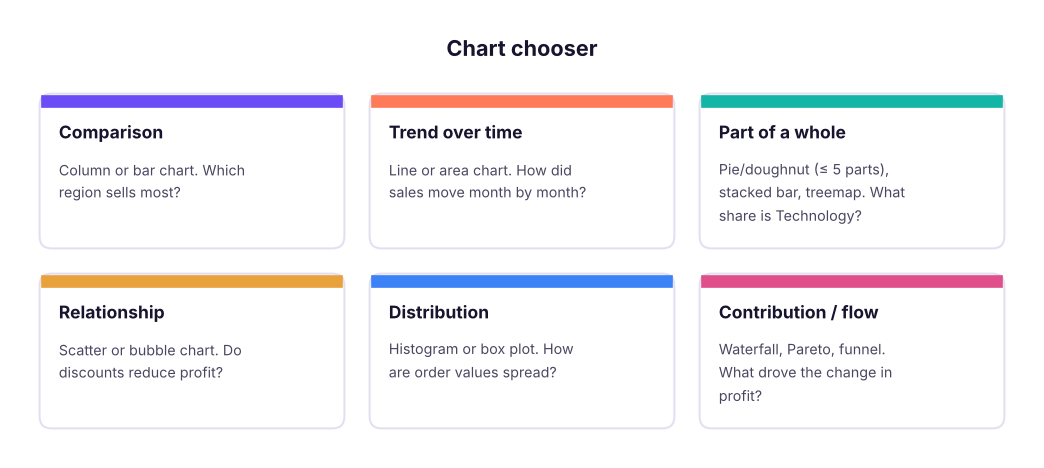
Creating and editing a chart
- Select the data including headers (or a summary table / pivot table). For a quick chart press
Alt + F1(embedded) orF11(new chart sheet). - Or use Insert → Recommended Charts to preview options.
- Click the chart: three buttons appear at its top-right: Chart Elements (+), Chart Styles (brush) and Chart Filters (funnel).
- Chart Design tab: Switch Row/Column, Select Data, Change Chart Type, Move Chart, Quick Layout.
- Format pane: double-click any element (axis, series, label) or press
Ctrl + 1with it selected.
| Element | Good practice |
|---|---|
| Title | Say the insight: "Technology drives 77% of sales", not "Sales by Category" |
| Axes | Start bar/column axes at zero; format numbers (K, L, %); remove unnecessary decimals |
| Gridlines | Light grey or none |
| Data labels | Use them instead of an axis when there are few bars |
| Legend | Only if there is more than one series; better: label lines directly |
| Colour | One highlight colour for the point you want to make, grey for the rest |
| Template | Right-click → Save as Template to reuse your style |
The core chart types
Here are the core charts built from Superstore data. The Excel steps follow each one.
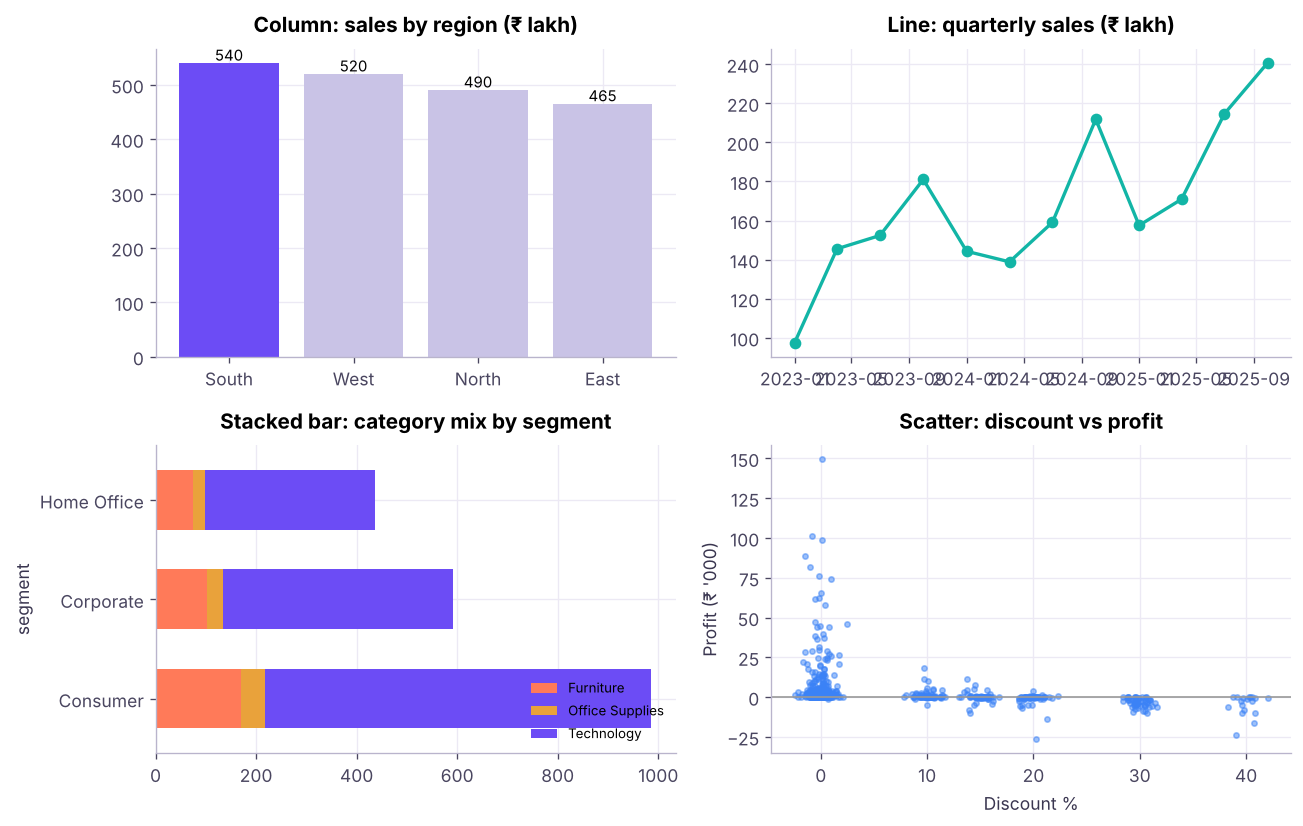
| Chart | Excel path | Use when |
|---|---|---|
| Clustered column / bar | Insert → Column or Bar | Comparing categories; use bar when labels are long or there are many categories |
| Stacked / 100% stacked | Same menu | Showing parts of a total across groups |
| Line | Insert → Line (with markers) | Trends over time; up to ~5 lines |
| Area | Insert → Line → Area | Cumulative trends; volume over time |
| Pie / doughnut | Insert → Pie | 2–5 parts of a whole that add to 100% |
| Scatter (XY) | Insert → Scatter | Relationship between two numbers; add a trendline (right-click series → Add Trendline, tick Display R²) |
| Bubble | Insert → Scatter → Bubble | Scatter with a third measure as bubble size |
3D charts, pie charts with 10 slices, two different units on one axis, truncated bar axes that exaggerate differences, rainbow colours, and charts without units. If you need to squint, the chart has failed.
Combo charts and the secondary axis
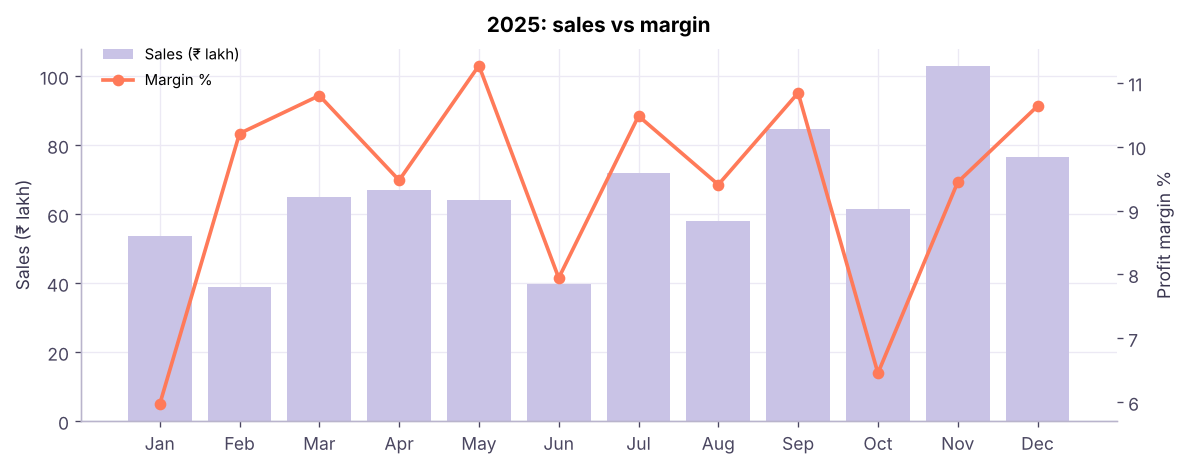
When two measures have very different scales (sales in lakhs and profit margin in %), plot one as columns and the other as a line on a secondary axis.
- Make a summary table: Month, Sales, Margin %.
- Select it → Insert → Combo Chart → Create Custom Combo Chart.
- Sales: Clustered Column. Margin %: Line with Markers, tick Secondary Axis.
- Add axis titles so readers know which axis belongs to which series.
Sparklines
Sparklines are tiny charts inside a cell: Insert → Sparklines → Line, Column or Win/Loss. Select the data range (for example 12 months in a row) and the location cell. Use Sparkline → Show → High Point / Low Point to mark extremes. They are ideal in dashboard tables, one row per product or region.
Thermometer chart (target vs actual)
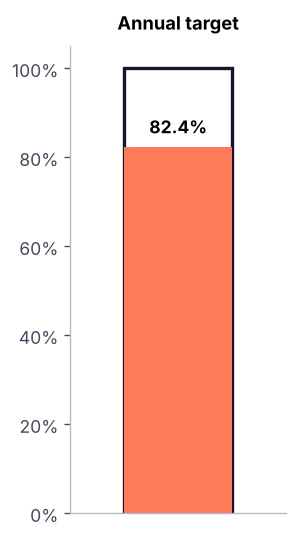
A thermometer shows progress towards a single target, such as "₹ 7.4 crore of the ₹ 9 crore annual target".
| A | B | |
|---|---|---|
| 1 | Metric | Value |
| 2 | Target | 900 |
| 3 | Achieved | 742 |
| 4 | % achieved | 82.4% |
- B4
=B3/B2
- Select only the % achieved cell (and its label) → Insert → Clustered Column.
- Format the vertical axis: Minimum 0, Maximum 1 (100%). Delete the horizontal axis and gridlines.
- Format the series: Gap Width 0% so the column fills the width; choose a strong fill colour.
- Optional: add a second series with value 1 (100%) on the secondary axis, no fill and a thick border to draw the "glass" of the thermometer; set the secondary axis to 0–1 as well.
- Resize the chart to be tall and narrow; add a data label showing 82.4%.
Pareto chart (the 80/20 rule)
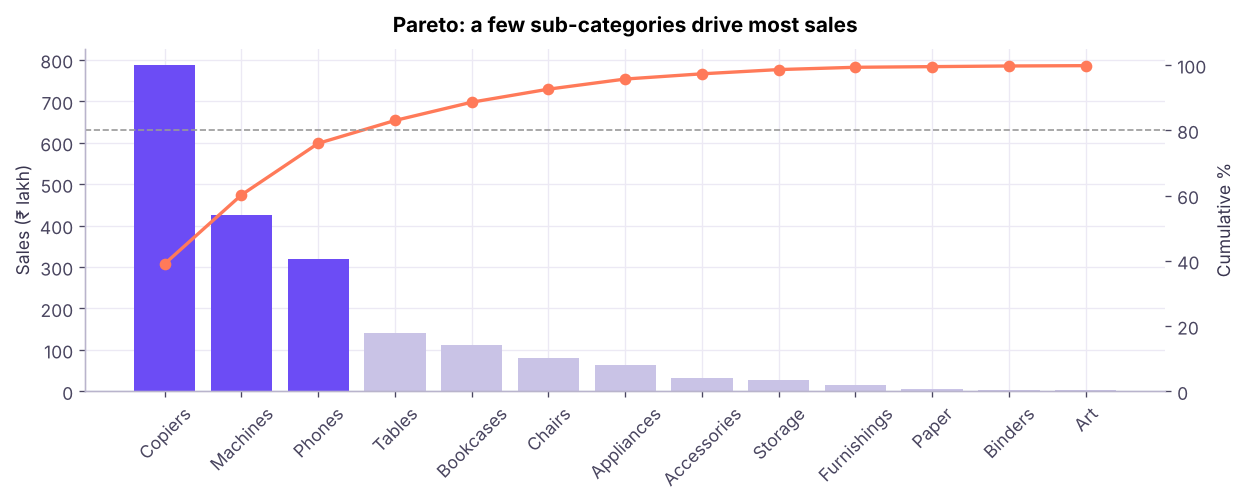
The Pareto principle says that roughly 80% of effects come from 20% of causes: a few sub-categories drive most sales, a few complaint types cause most tickets. A Pareto chart shows sorted bars plus a cumulative % line.
pareto = s.groupby("sub_category")["sales"].sum().sort_values(ascending=False).to_frame()
pareto["share %"] = (pareto.sales / pareto.sales.sum() * 100).round(1)
pareto["cumulative %"] = pareto["share %"].cumsum().round(1)
pareto["sales"] = (pareto.sales / 1e5).round(1)
pareto.rename(columns={"sales": "sales (₹ lakh)"})| sales (₹ lakh) | share % | cumulative % | |
|---|---|---|---|
| sub_category | |||
| Copiers | 787.5 | 39.1 | 39.1 |
| Machines | 425.9 | 21.1 | 60.2 |
| Phones | 319.2 | 15.8 | 76.0 |
| Tables | 140.5 | 7.0 | 83.0 |
| Bookcases | 112.7 | 5.6 | 88.6 |
| Chairs | 80.9 | 4.0 | 92.6 |
| Appliances | 63.3 | 3.1 | 95.7 |
| Accessories | 31.8 | 1.6 | 97.3 |
| Storage | 26.6 | 1.3 | 98.6 |
| Furnishings | 14.3 | 0.7 | 99.3 |
| Paper | 4.9 | 0.2 | 99.5 |
| Binders | 4.0 | 0.2 | 99.7 |