Build a complete, interactive sales dashboard from the Superstore data, from business questions and KPIs to pivot charts, slicers, a timeline, KPI cards and a dynamic title. Then protect it (sheet, workbook, allowed ranges), document it with comments and notes, and audit formulas with Evaluate Formula.
● Live classes 8–9✦ Excel for Microsoft 365, 2026Intermediate–Advanced⏱ 150 min
The Head of Sales wants a one-page Excel dashboard to review performance for 2023–2025. They want to see, at a glance: total sales, profit, profit margin and orders; how sales are trending; which regions, categories and sub-categories perform best and worst; and the effect of discounts on profit. They want to filter by year, region and segment. The dashboard will be emailed every month, so it must be protected against accidental changes.
Step 0: questions and KPIs first
KPI / question
Calculation
Visual
Total sales
Sum of sales
KPI card
Total profit and margin
Sum of profit; profit ÷ sales
KPI cards
Number of orders
Distinct count of order_id
KPI card
Sales trend
Sales by month
Line chart
Regional performance
Sales and profit by region
Bar chart
Product mix
Sales by category and sub-category
Bar chart / treemap
Discount impact
Profit by discount level
Column chart
Filters
Year, Region, Segment
Timeline + slicers
Agreeing on this table before building saves hours of rework. It is also your "requirements document" in interviews.
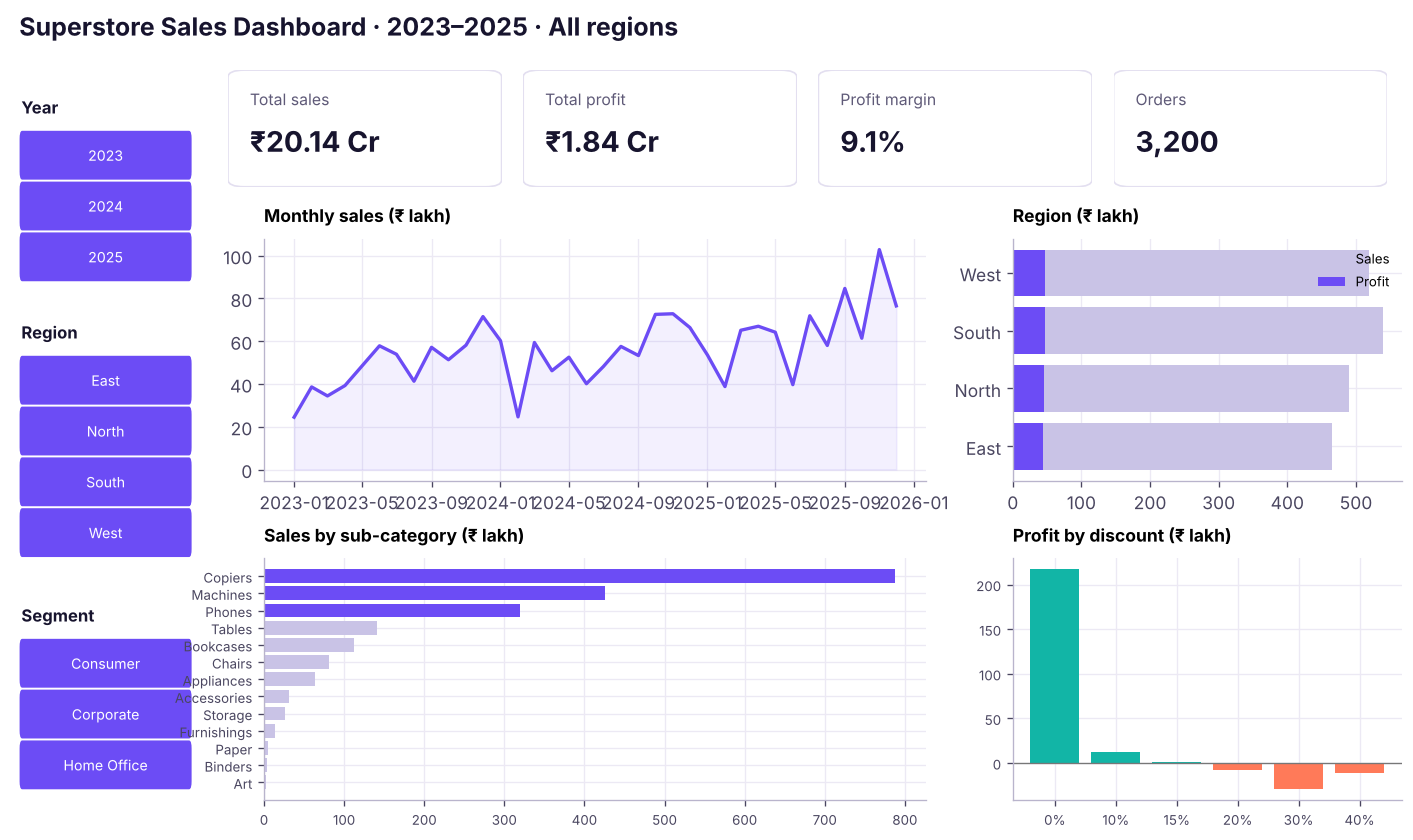
Here is the finished result we are aiming for (drawn from the real data):
The finished Superstore dashboard: KPI cards on top, trend and breakdown charts below, slicers on the left.
Step 1: prepare the data
Import superstore_sales.csv with Data → From Text/CSV (Power Query, Lesson 12), or open it and convert the range to a Table named tblSales (Ctrl + T).
Create a sheet called Calc (it will be hidden later). Insert one pivot table for each chart, all from tblSales so they share one pivot cache:
Pivot
Rows
Values
Notes
P1 KPIs
(none)
Sum of sales, Sum of profit, Distinct count of order_id
Tick "Add this data to the Data Model" to get Distinct Count
P2 Trend
order_date grouped by Years + Months
Sum of sales
Line chart
P3 Region
region
Sum of sales, Sum of profit
Bar chart
P4 Sub-category
sub_category
Sum of sales (sorted)
Bar chart
P5 Discount
discount
Sum of profit
Column chart
Give each pivot a meaningful name (PivotTable Analyze → PivotTable Name: ptTrend, ptRegion …). Names make GETPIVOTDATA formulas and maintenance easier.
Step 3: pivot charts
Click each pivot → PivotTable Analyze → PivotChart → choose the type → cut and paste the chart onto a sheet called Dashboard.
Clean each chart:
Right-click the field buttons → Hide All Field Buttons on Chart.
Delete gridlines and legends that are not needed; add data labels where there are few bars.
Apply the same font and a two-colour palette (one highlight, one neutral).
Write insight titles, for example "Technology drives most sales" or "Discounts above 20% destroy profit".
Step 4: slicers and a timeline that control everything
Select any pivot → PivotTable Analyze → Insert Slicer → tick region and segment.
Insert Timeline → order_date → switch the timeline to YEARS.
Right-click each slicer → Report Connections → tick all five pivots. Now one click filters every chart and KPI.
Format slicers: Slicer tab → Columns = 1 or 2, a matching style, size them to align with the grid.
Watch outReport Connections are greyed out?
Slicers can only connect pivots that share the same pivot cache (or the same Data Model). If you built a pivot from a different range, rebuild it from tblSales.
Step 5: KPI cards and a dynamic title
KPI cards are simply cells or shapes linked to the KPI pivot. GETPIVOTDATA keeps returning the right number even when slicers change the pivot.
XCalc sheet: KPI formulas (values shown for the unfiltered data)
A
B
C
1
KPI
Formula
Value
2
Total sales
=GETPIVOTDATA("Sum of sales",Calc!$A$3)
201,413,569
3
Total profit
=GETPIVOTDATA("Sum of profit",Calc!$A$3)
18,352,164
4
Profit margin
=C3/C2
9.1%
5
Orders
=GETPIVOTDATA("Distinct Count of order_id",Calc!$A$3)
To show a KPI card on the dashboard: Insert → Shapes → Rounded Rectangle, click the shape, type =Calc!C6 in the formula bar, and press Enter. The shape now displays the live value.
Dynamic title: build the title text in a cell and link a text box to it:
where H2:H5 is a small pivot with region in Rows that is also connected to the slicers, so it lists only the selected regions.
Step 6: layout and design rules
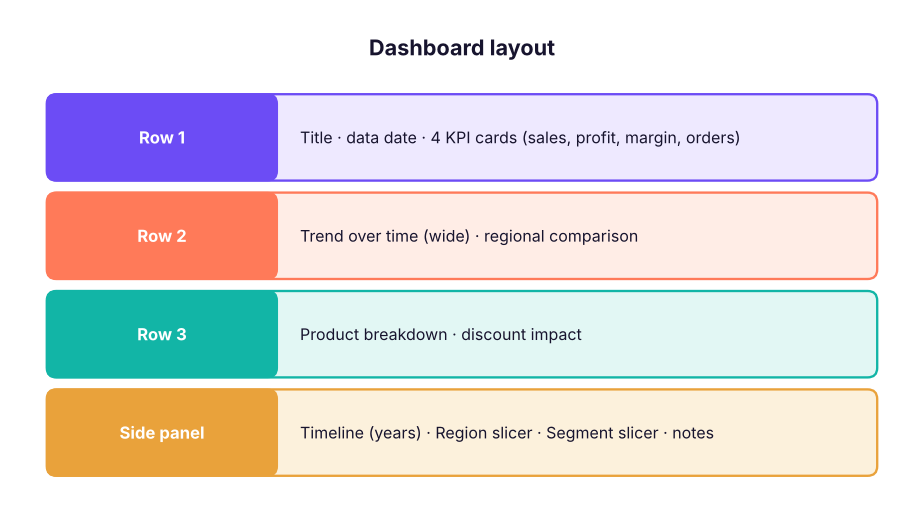
A simple dashboard grid. Most important information top-left; filters on one side; consistent spacing.
Z-pattern: people read top-left first: put the headline KPIs there.
Align to the grid: hold Alt while dragging or resizing a chart to snap it to cell borders; set every chart to the same height.
Limit colours: one brand colour, one highlight, red only for bad news.
Remove clutter: View → untick Gridlines and Headings; hide the Calc sheet (right-click tab → Hide).
Label the date and the source: "Data: Superstore orders, Jan 2023 – Dec 2025. Refreshed 05-Jan-2026."
Test it: click every slicer combination; check that totals match the raw data.
Step 7: protect the dashboard
Protection
Where
What it does
Lock / unlock cells
Ctrl + 1 → Protection → Locked
All cells are locked by default; unlock the input cells users may change. Locking only takes effect when the sheet is protected
Hide formulas
Ctrl + 1 → Protection → Hidden
Formula bar shows nothing for those cells once the sheet is protected
Protect Sheet
Review → Protect Sheet
Prevents editing locked cells; tick what users may still do: Use PivotTable & PivotChart, Edit objects (needed for slicers), sort, filter, format
Allow Edit Ranges
Review → Allow Edit Ranges
Lets specific ranges be edited, optionally with their own password
Protect Workbook
Review → Protect Workbook
Protects the structure: no adding, deleting, renaming, moving or unhiding sheets
Encrypt with password
File → Info → Protect Workbook → Encrypt
Password needed to open the file
Mark as Final
File → Info → Protect Workbook
A read-only hint (not security)
Step by stepProtect so slicers still work
Unlock any cells users need to type in (for example a target input).
Review → Protect Sheet → tick "Select unlocked cells", "Use PivotTable & PivotChart" and "Edit objects" → set a password.
Review → Protect Workbook (structure) so the hidden Calc sheet cannot be unhidden.
Test with a colleague before emailing.
Watch outSheet protection is not strong security
Sheet and structure passwords stop accidents, not determined users. Never rely on them to protect confidential data: use file encryption, SharePoint permissions or share only what is needed (for example a PDF export).
Comments and notes
Feature
Insert
Use
Note (old "comment")
Review → Notes → New Note (Shift + F2)
A sticky note explaining a cell: "Target approved by CFO on 12-Jan"
Comment (threaded)
Review → New Comment (Ctrl + Alt + M)
A conversation: @mention a colleague, reply, resolve
Notes are best for permanent documentation; comments for review discussions. Add a small "How to use" note on the dashboard explaining the slicers and data date.
Auditing formulas: Evaluate Formula and friends
When a KPI looks wrong, use Formulas → Formula Auditing:
Tool
What it shows
Evaluate Formula
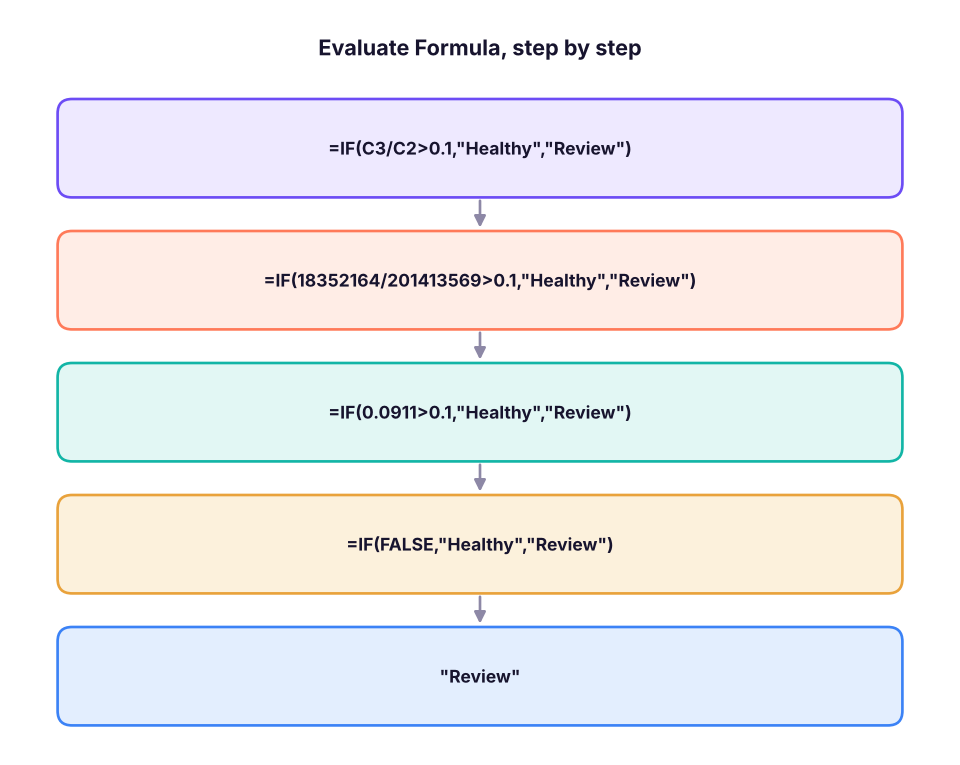
Steps through a formula one calculation at a time: press Evaluate to see each part replaced by its value
Trace Precedents / Dependents
Arrows to the cells a formula uses, or that use it
Show Formulas (Ctrl + `)
Every formula instead of its result
Error Checking
Walks through cells with errors and suggests fixes
Watch Window
Keeps an eye on key cells while you work elsewhere
F9 inside the formula bar
Select part of a formula and press F9 to see its value (press Esc to undo)
Evaluate Formula replaces one part at a time until only the result remains.
Delivering the dashboard
Refresh: Data → Refresh All before sending.
Export: File → Export → PDF (select the Dashboard sheet, landscape, fit to one page) for people who only need to read it.
Share live: save to OneDrive/SharePoint and share a link; viewers can use slicers in Excel for the web.
Automate: Power Query + Refresh All, or Office Scripts / Power Automate to refresh and email on a schedule.
Do it with AIDo it with AI
Copilot in Excel can draft the analysis: "Summarise sales and profit by region and category, identify the three biggest loss-making sub-categories, and suggest charts for a dashboard." Use its suggestions as a starting point, then build the final dashboard deliberately: you are responsible for every number on it.
A good dashboard closes with 3–4 written insights, for example:
Technology generates about three quarters of sales and most of the profit; furniture is unprofitable overall.
Tables and Bookcases lose money; both are heavily discounted.
Order lines with discounts above 20% lose money almost every time: review the discount policy.
Sales peak every October–December (festive season); plan stock and staffing accordingly.
Summary
Key takeaways
Start with the brief, KPIs and questions; then data prep; then one pivot per visual.
Build all pivots from one Table so they share a cache and can be connected to slicers and a timeline (Report Connections).
KPI cards use GETPIVOTDATA; shapes can display a cell's value by typing =Cell in the formula bar.
Design: top-left headline KPIs, aligned grid, few colours, insight titles, data date and source.
Protect: unlock inputs, Protect Sheet (allow PivotTables and objects), Protect Workbook structure; use encryption for real security.
Audit with Evaluate Formula, Trace Precedents/Dependents, Show Formulas and the Watch Window.
Quick quiz6 questions · tap an answer to check it
1. Why should all dashboard pivots be built from the same Table?
Answer: B. Slicers can only control pivots that share a cache (or data model).
2. After protecting the sheet, slicers stop working. What did you forget?
Answer: B. Slicers are objects that change pivots, so both permissions must be allowed.
3. Which tool lets you see each step of a complex formula's calculation?
Answer: B. Evaluate Formula replaces one part at a time with its value.
4. What does Protect Workbook (structure) prevent?
Answer: C. Structure protection guards the sheets, not the cells.
5. How do you count distinct orders in a pivot table?
Answer: B. Distinct Count is available only for Data Model pivots.
6. What is the difference between a note and a comment in Microsoft 365?
Answer: A. Use notes for documentation and comments for review discussions.
ExerciseBuild it yourself
Build the dashboard in this lesson from superstore_sales.csv. Then add: (1) a Ship mode slicer; (2) a KPI card for average days to ship; (3) a chart of the top 10 customers by sales that responds to all slicers; (4) sheet protection that still allows slicers.
Show solution
(1) Insert Slicer → ship_mode → Report Connections → all pivots.
(2) Add days_to_ship to tblSales; add Average of days_to_ship to the KPI pivot; link a shape to its GETPIVOTDATA cell.
(3) New pivot from tblSales: Rows customer_name, Values Sum of sales, Value Filter Top 10; PivotChart (bar); connect to the slicers.
(4) Review → Protect Sheet with "Use PivotTable & PivotChart" and "Edit objects" ticked; protect workbook structure.
Interview cornerQuestions you may be asked
Q: Walk me through how you would build an Excel dashboard.
Clarify the audience and questions; define KPIs; clean and structure the data as a Table; create one pivot per visual; build pivot charts; connect slicers and a timeline; add KPI cards with GETPIVOTDATA; design the layout; validate numbers against the source; protect and share.
Q: How do you make sure dashboard numbers are correct?
Reconcile totals with the raw data (SUM vs pivot), test filters, check distinct counts, use Evaluate Formula and trace precedents for KPI formulas, and have a second person review.
Q: Excel dashboard or Power BI?
Excel for small data, quick turnaround and audiences who live in Excel; Power BI for larger data, many users, scheduled refresh, row-level security and richer interactivity.
Practise more online
Free, trusted places to test yourself on this topic. Links open the original site in a new tab.