SkillNavoraData Science & AI Handbook
Advanced Excel · Lesson 10 of 12

Charts and Advanced Charts

Choose the right chart for every question, build and format column, bar, line, area, pie, scatter and combo charts, add sparklines, and create the advanced business charts taught in class: thermometer, Pareto, population pyramid and waterfall, plus histogram, box plot, treemap and funnel.

● Live classes 7–8✦ Excel for Microsoft 365, 2026Intermediate⏱ 130 min
By the end of this lesson you can
  • Pick the right chart type from the question you want to answer
  • Insert, edit and format charts quickly (elements, axes, labels, colours, templates)
  • Build combo charts with a secondary axis and add sparklines
  • Build thermometer, Pareto, population pyramid and waterfall charts step by step
  • Use the newer statistical and hierarchy charts and apply chart design best practices

Start with the question, not the chart
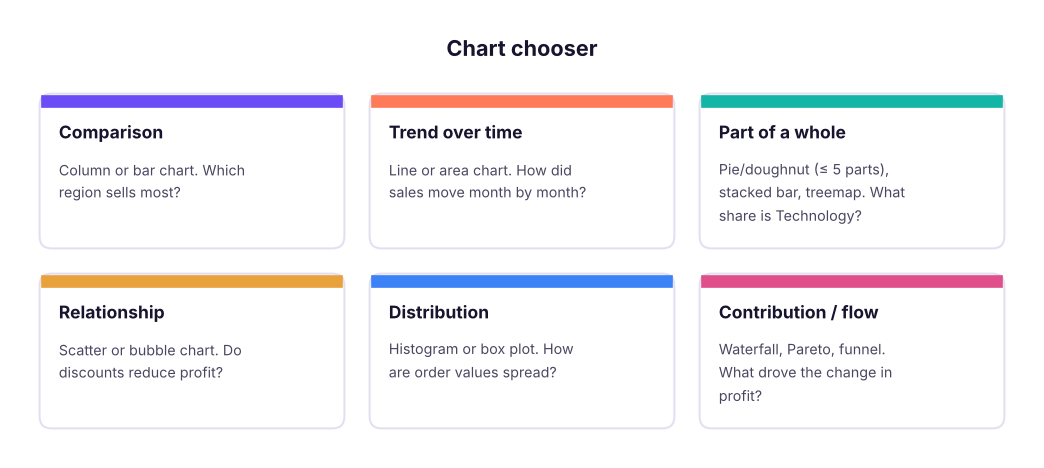
Choose a chart by the question you are answering.

Creating and editing a chart

Step by stepThe fast way
  1. Select the data including headers (or a summary table / pivot table). For a quick chart press Alt + F1 (embedded) or F11 (new chart sheet).
  2. Or use Insert → Recommended Charts to preview options.
  3. Click the chart: three buttons appear at its top-right: Chart Elements (+), Chart Styles (brush) and Chart Filters (funnel).
  4. Chart Design tab: Switch Row/Column, Select Data, Change Chart Type, Move Chart, Quick Layout.
  5. Format pane: double-click any element (axis, series, label) or press Ctrl + 1 with it selected.
Element Good practice
Title Say the insight: "Technology drives 77% of sales", not "Sales by Category"
Axes Start bar/column axes at zero; format numbers (K, L, %); remove unnecessary decimals
Gridlines Light grey or none
Data labels Use them instead of an axis when there are few bars
Legend Only if there is more than one series; better: label lines directly
Colour One highlight colour for the point you want to make, grey for the rest
Template Right-click → Save as Template to reuse your style

The core chart types

Here are the core charts built from Superstore data. The Excel steps follow each one.
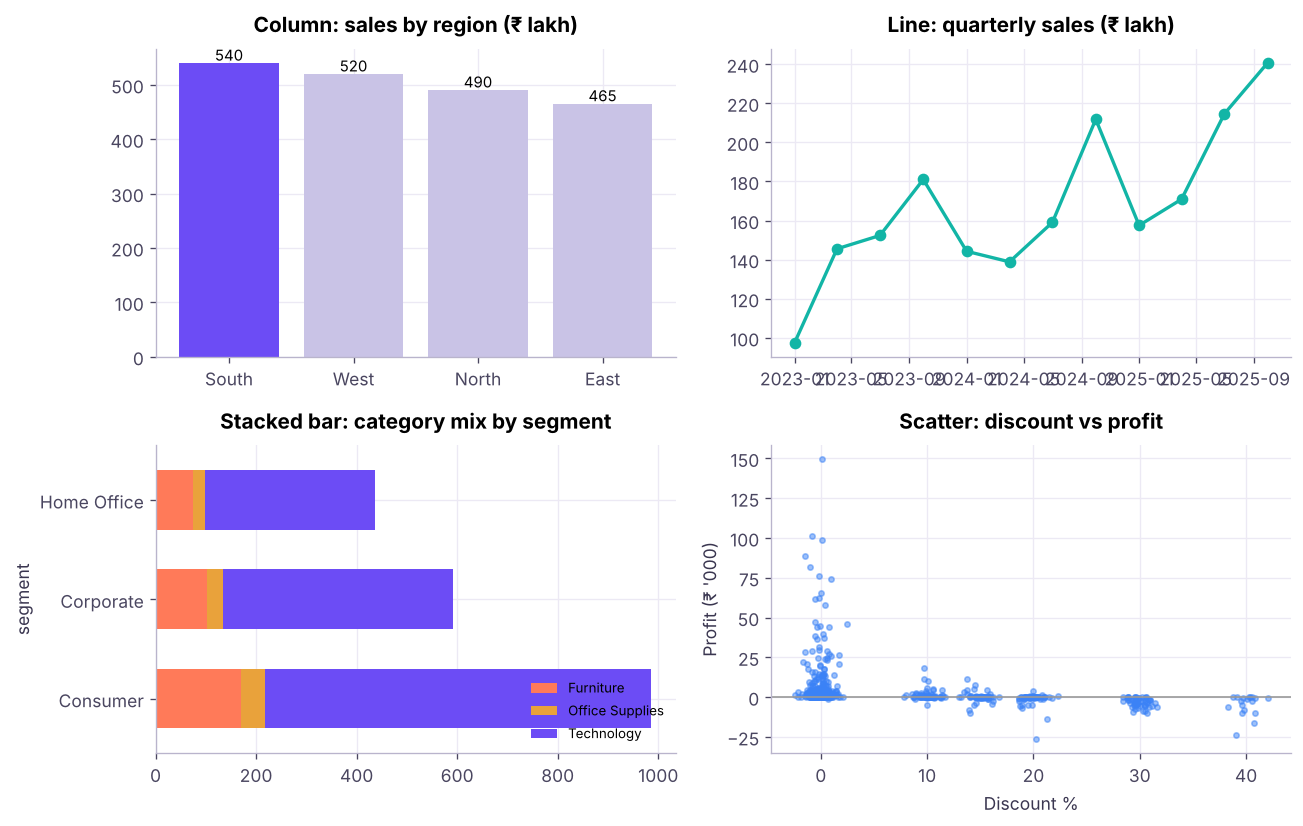
Column (comparison), line (trend), clustered and stacked bar (comparison of parts), and scatter (relationship).
Chart Excel path Use when
Clustered column / bar Insert → Column or Bar Comparing categories; use bar when labels are long or there are many categories
Stacked / 100% stacked Same menu Showing parts of a total across groups
Line Insert → Line (with markers) Trends over time; up to ~5 lines
Area Insert → Line → Area Cumulative trends; volume over time
Pie / doughnut Insert → Pie 2–5 parts of a whole that add to 100%
Scatter (XY) Insert → Scatter Relationship between two numbers; add a trendline (right-click series → Add Trendline, tick Display R²)
Bubble Insert → Scatter → Bubble Scatter with a third measure as bubble size
Common mistakesChart crimes to avoid

3D charts, pie charts with 10 slices, two different units on one axis, truncated bar axes that exaggerate differences, rainbow colours, and charts without units. If you need to squint, the chart has failed.

Combo charts and the secondary axis

When two measures have very different scales (sales in lakhs and profit margin in %), plot one as columns and the other as a line on a secondary axis.

Step by stepBuild a combo chart
  1. Make a summary table: Month, Sales, Margin %.
  2. Select it → Insert → Combo Chart → Create Custom Combo Chart.
  3. Sales: Clustered Column. Margin %: Line with Markers, tick Secondary Axis.
  4. Add axis titles so readers know which axis belongs to which series.
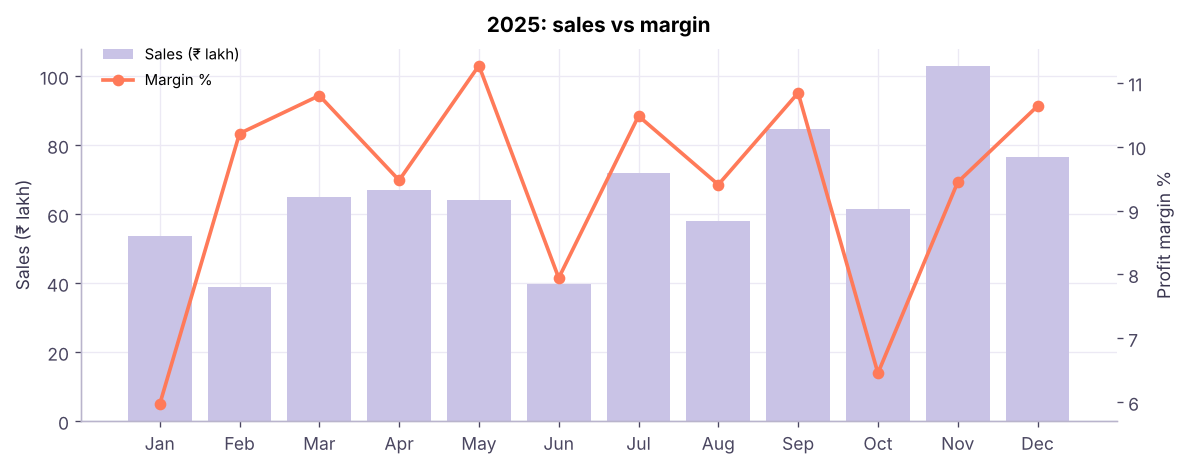
Combo chart: monthly sales (columns, left axis) and profit margin (line, right axis) for 2025.

Sparklines

Sparklines are tiny charts inside a cell: Insert → Sparklines → Line, Column or Win/Loss. Select the data range (for example 12 months in a row) and the location cell. Use Sparkline → Show → High Point / Low Point to mark extremes. They are ideal in dashboard tables, one row per product or region.

Thermometer chart (target vs actual)

A thermometer shows progress towards a single target, such as "₹ 7.4 crore of the ₹ 9 crore annual target".

XThermometer data
AB
1MetricValue
2Target900
3Achieved742
4% achieved82.4%
  • B4=B3/B2
Step by stepBuild it
  1. Select only the % achieved cell (and its label) → Insert → Clustered Column.
  2. Format the vertical axis: Minimum 0, Maximum 1 (100%). Delete the horizontal axis and gridlines.
  3. Format the series: Gap Width 0% so the column fills the width; choose a strong fill colour.
  4. Optional: add a second series with value 1 (100%) on the secondary axis, no fill and a thick border to draw the "glass" of the thermometer; set the secondary axis to 0–1 as well.
  5. Resize the chart to be tall and narrow; add a data label showing 82.4%.
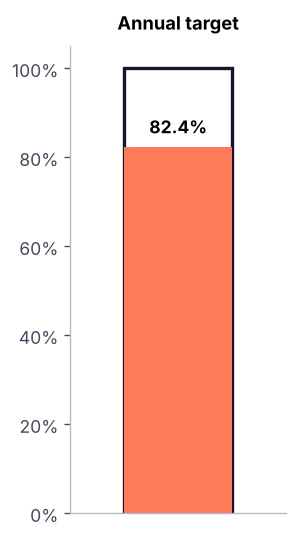
Thermometer chart: 82.4% of the annual target achieved.

Pareto chart (the 80/20 rule)

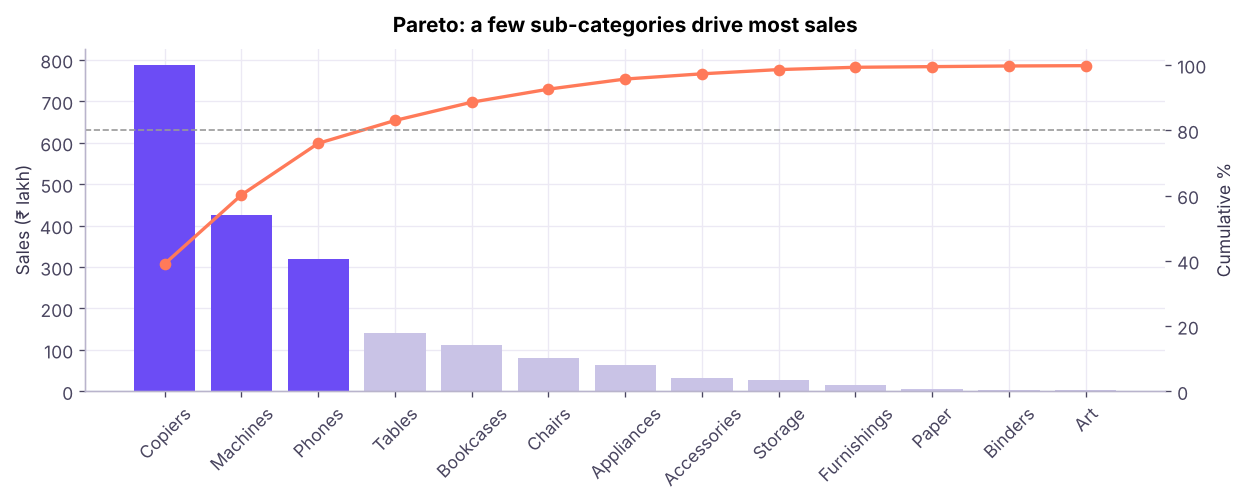
The Pareto principle says that roughly 80% of effects come from 20% of causes: a few sub-categories drive most sales, a few complaint types cause most tickets. A Pareto chart shows sorted bars plus a cumulative % line.

Python
pareto = s.groupby("sub_category")["sales"].sum().sort_values(ascending=False).to_frame()
pareto["share %"] = (pareto.sales / pareto.sales.sum() * 100).round(1)
pareto["cumulative %"] = pareto["share %"].cumsum().round(1)
pareto["sales"] = (pareto.sales / 1e5).round(1)
pareto.rename(columns={"sales": "sales (₹ lakh)"})
Output
sales (₹ lakh) share % cumulative %
sub_category
Copiers 787.5 39.1 39.1
Machines 425.9 21.1 60.2
Phones 319.2 15.8 76.0
Tables 140.5 7.0 83.0
Bookcases 112.7 5.6 88.6
Chairs 80.9 4.0 92.6
Appliances 63.3 3.1 95.7
Accessories 31.8 1.6 97.3
Storage 26.6 1.3 98.6
Furnishings 14.3 0.7 99.3
Paper 4.9 0.2 99.5
Binders 4.0 0.2 99.7
13 rows × 3 columns (first 12 shown)
Step by stepBuild it in Excel
  1. Summarise sales by sub-category (pivot or SUMIFS) and sort largest to smallest.
  2. Add Cumulative %: in C2 =SUM($B$2:B2)/SUM($B$2:$B$13), copy down.
  3. Select the three columns → Insert → Combo: Sales = Clustered Column, Cumulative % = Line on the Secondary Axis.
  4. Set the secondary axis maximum to 100%. Optionally add a horizontal 80% reference line.
  5. Excel 2016+ also has a built-in Insert → Statistical → Pareto chart that sorts and accumulates for you from raw data.
Pareto chart of sales by sub-category. Copiers, Machines and Phones alone make up 76% of sales; adding Tables passes the 80% line.

Population pyramid

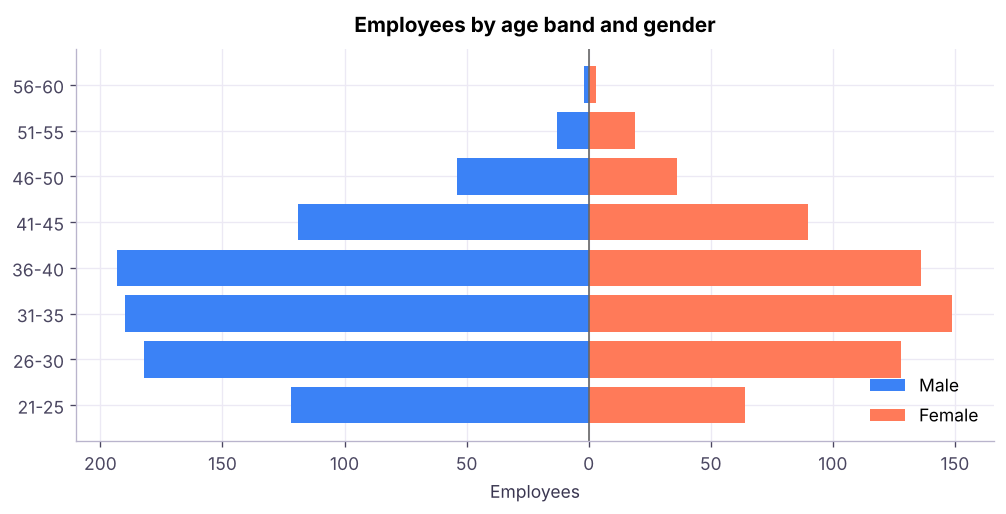
A population pyramid compares two groups (typically male and female) across age bands, with one group's bars going left and the other's going right. In business it works for any two-sided comparison: this year vs last year by product, or two regions by age band.

Python
hr = pd.read_csv("hr_employees.csv")
hr["age_band"] = pd.cut(hr.age, [20, 25, 30, 35, 40, 45, 50, 55, 60], labels=["21-25", "26-30", "31-35", "36-40", "41-45", "46-50", "51-55", "56-60"])
pyr = hr.pivot_table(index="age_band", columns="gender", values="emp_id", aggfunc="count", observed=False)
pyr["Male (negative)"] = -pyr["Male"]
pyr
Output
gender Female Male Male (negative)
age_band
21-25 64 122 -122
26-30 128 182 -182
31-35 149 190 -190
36-40 136 193 -193
41-45 90 119 -119
46-50 36 54 -54
51-55 19 13 -13
56-60 3 2 -2
8 rows × 3 columns
Step by stepBuild it
  1. Count employees by age band and gender (pivot table or COUNTIFS).
  2. Make the male counts negative (=-C2) in a helper column so they plot to the left.
  3. Select age bands, the negative male column and the female column → Insert → Clustered Bar.
  4. Format series: Series Overlap 100%, Gap Width 10–30%.
  5. Format the horizontal axis numbers with the custom format #,##0;#,##0 so negative values show without a minus sign.
  6. Vertical axis → Labels → Label Position: Low so the age labels sit on the left edge.
Population pyramid of the 1,500 employees in the HR dataset.

Waterfall chart

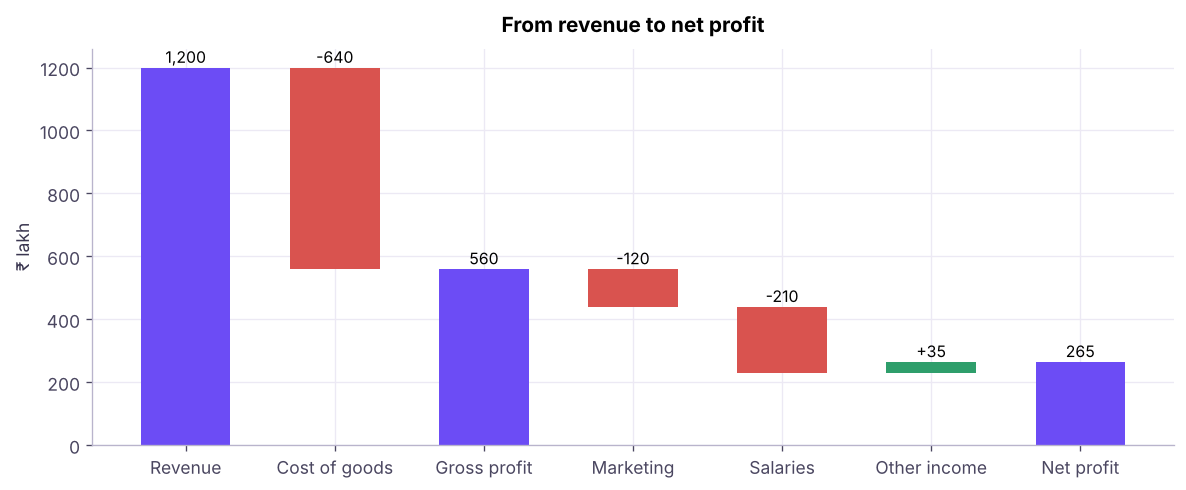
A waterfall shows how a starting value becomes an ending value through positive and negative steps: revenue to profit, last year's sales to this year's, or budget to actual.

XWaterfall data: from revenue to net profit (₹ lakh)
AB
1StepAmount
2Revenue1200
3Cost of goods-640
4Gross profit560
5Marketing-120
6Salaries-210
7Other income35
8Net profit265
Step by stepBuild it (Excel 2016 and later)
  1. Select the table → Insert → Waterfall (Insert → Charts → Waterfall, Funnel…).
  2. Click the Gross profit bar twice (to select only that point) → right-click → Set as total. Do the same for Net profit. Totals then start from zero instead of floating.
  3. Colour increases, decreases and totals differently (Format Data Point) and add data labels.

In older Excel versions you build the same chart as a stacked column with an invisible "base" series, an "up" series and a "down" series computed with formulas.

Waterfall from revenue to net profit. Totals are anchored at zero; increases are green and decreases are red.

Statistical and hierarchy charts (Excel 2016+)

Chart Insert path Shows Example question
Histogram Insert → Statistical → Histogram Frequency distribution; set bin width in Format Axis How are order values distributed?
Box & Whisker Insert → Statistical → Box and Whisker Median, quartiles and outliers by group Do salaries vary more in Sales than in IT?
Treemap Insert → Hierarchy → Treemap Nested rectangles sized by value Category → sub-category share of sales
Sunburst Insert → Hierarchy → Sunburst Rings for hierarchy levels Region → state → city
Funnel Insert → Waterfall → Funnel Drop-off between stages Visitors → sign-ups → orders
Filled map Insert → Maps Values by country or state Sales by state (needs internet)
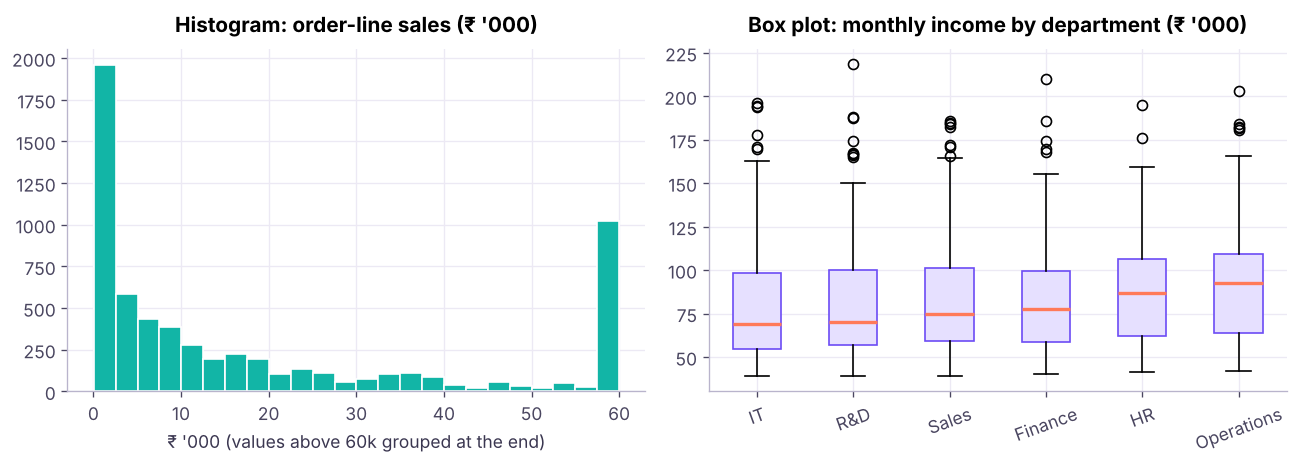
Histogram of order-line sales values and box plots of monthly income by department (HR data).

Dynamic charts

Charts become interactive when their source updates:

2026 updateCharts in Excel 365 (2026)

Copilot can suggest and insert charts from a sentence ("show monthly sales by region as a line chart"), and Analyze Data (Home → Analyze Data) proposes ready-made pivot charts with insights. Python in Excel can create seaborn or matplotlib charts inside the grid with =PY().

Summary

Key takeaways
Quick quiz6 questions · tap an answer to check it

1. Which chart best shows how monthly revenue changed over two years?

Answer: B. Lines show trends over time.

2. In a Pareto chart, what does the line represent?

Answer: B. The line accumulates each bar's share to show where ~80% is reached.

3. How do you make the male bars go to the left in a population pyramid?

Answer: A. Negative values plot to the left; #,##0;#,##0 shows them as positive numbers.

4. In Excel's waterfall chart, why must Gross profit be "Set as total"?

Answer: B. Totals should be anchored to the axis; otherwise Excel treats them as another step.

5. When should you use a secondary axis?

Answer: B. A secondary axis lets both series be readable; label both axes clearly.

6. Which chart shows median, quartiles and outliers for several groups?

Answer: B. Box plots summarise distributions and highlight outliers.
ExerciseBuild four charts from Superstore

(1) A Pareto chart of profit by sub-category (watch out for negative profit: what does it mean?). (2) A combo chart of quarterly sales (columns) and order count (line, secondary axis). (3) A waterfall from 2024 total sales to 2025 total sales, with one step per region showing the change. (4) A box plot of discount by category.

Show solution

(1) Sort profit descending; negative sub-categories (such as Tables and Bookcases here) reduce the cumulative total, so the cumulative line rises above 100% and then falls; a Pareto chart works best on positive values, so plot losses separately. (2) Pivot by quarter with Sum of sales and Count of order_id → Combo chart with the count on the secondary axis. (3) Table: 2024 total; North change; South change; East change; West change; 2025 total. Insert → Waterfall; set the first and last bars as totals. (4) Select category and discount columns → Insert → Box and Whisker.

Interview cornerQuestions you may be asked

Q: How do you choose a chart type? From the question: comparison, trend, composition, relationship, distribution or contribution. Then simplify: remove clutter, highlight the key point and write an insight title.

Q: What is a Pareto analysis used for? To find the vital few causes (products, customers, complaint types) that produce most of the effect, so that effort is focused where it matters.

Q: How would you show actual vs target for 10 sales reps? A bar chart of actuals with a target marker (a line or a thin overlapping bar per rep), or a bullet chart; a thermometer works for one overall target.

Practise more online

Free, trusted places to test yourself on this topic. Links open the original site in a new tab.