Power Query, Power Pivot, Analysis ToolPak & What-If Analysis
Automate cleaning with Power Query (import, transform, unpivot, merge, append, group), model several tables with Power Pivot and DAX, get descriptive statistics and regression from the Analysis ToolPak, plan with Goal Seek, Data Tables, Scenario Manager and Solver, and meet LAMBDA, Python in Excel and macros.
● Live class 9✦ Excel for Microsoft 365, 2026Advanced⏱ 150 min
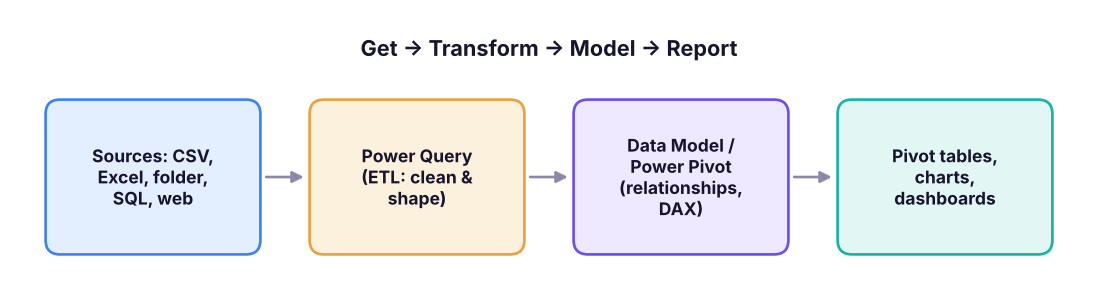
Formulas and pivots are great until the same cleaning has to be repeated every month, the data has several related tables, or it grows past a million rows. The Power tools solve exactly these problems, and they are the same engines used in Power BI, so everything you learn here transfers directly.
The modern Excel analytics stack. Power Query and the Data Model are shared with Power BI.
Power Query: repeatable cleaning
Power Query (Data → Get & Transform Data) imports data and records every cleaning step you click. Next month, put the new file in place and click Refresh: all steps run again automatically.
Step by stepYour first query
Data → Get Data → From File → From Text/CSV → choose superstore_sales.csv → Transform Data. The Power Query Editor opens.
Check data types in each column header (ABC = text, 123 = whole number, 1.2 = decimal, calendar = date). Fix any wrong ones (right-click header → Change Type).
Remove columns you do not need (select → right-click → Remove, or Choose Columns).
Filter rows with the header drop-downs (for example remove test orders).
Add a column: Add Column → Date → Year, or Custom Column with a formula such as [sales] - [profit].
Rename the query (right panel) to Sales → Home → Close & Load To… → Table, PivotTable report, or Only Create Connection + Add to Data Model.
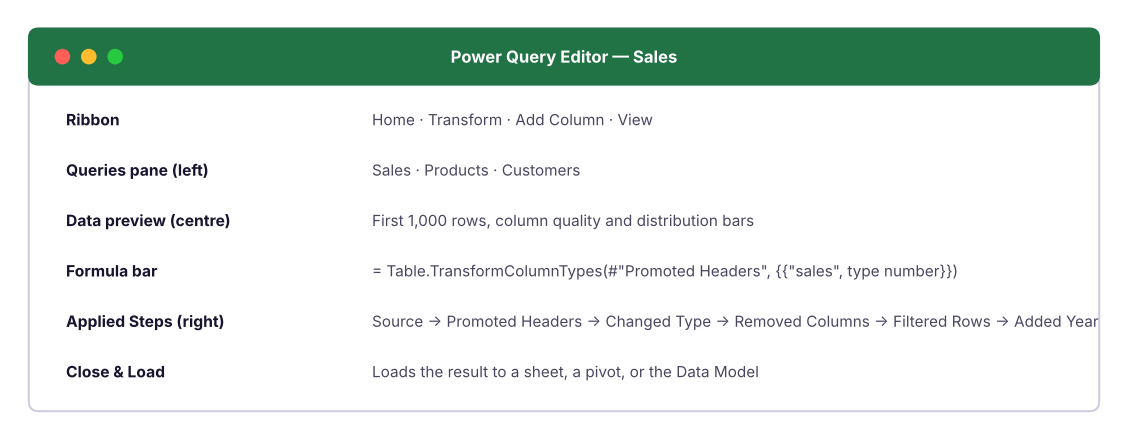
The Power Query Editor. Every action you take is recorded in Applied Steps on the right.
Transformations you will use most
Transformation
Where
Example
Remove / keep rows
Home → Remove Rows / Keep Rows
Remove top 3 title rows, remove blank rows, remove duplicates
Use first row as headers
Home → Use First Row as Headers
After importing a report
Split column
Home → Split Column → By Delimiter
IN-2025-00042 → country, year, number
Replace values
Transform → Replace Values
Bangalore → Bengaluru
Trim / Clean / Format case
Transform → Format
Same as TRIM, CLEAN, PROPER
Fill down
Transform → Fill → Down
Fill blank category cells (Lesson 2's Go To Special trick, but repeatable)
Conditional column
Add Column → Conditional Column
if [discount] > 0.2 then "High" else "Normal"
Column from examples
Add Column → Column From Examples
Like Flash Fill, but repeatable
Group By
Home → Group By
Sales by region (like a pivot)
Unpivot
Transform → Unpivot Columns
Turn month columns into rows
Merge Queries
Home → Merge Queries
A join (lookup) between two tables
Append Queries
Home → Append Queries
Stack tables with the same columns (Jan + Feb + Mar)
From Folder
Get Data → From File → From Folder
Combine every file in a folder automatically
Unpivot: from wide to long
Reports often arrive wide: one column per month or per region. Pivot tables, Power BI and Python all prefer long data (one row per observation). Unpivot fixes it in one click.
XWide (before): one column per month
A
B
C
D
1
Region
Jan
Feb
Mar
2
North
120
135
150
3
South
98
101
110
Step by stepUnpivot in Power Query
Load the wide table into Power Query.
Select the Region column (the one that should stay as it is).
Transform → Unpivot Columns → Unpivot Other Columns.
Rename Attribute to Month and Value to Sales.
XLong (after): one row per region and month
A
B
C
1
Region
Month
Sales
2
North
Jan
120
3
North
Feb
135
4
North
Mar
150
5
South
Jan
98
6
South
Feb
101
7
South
Mar
110
"Unpivot Other Columns" is better than selecting the month columns, because new months (Apr, May…) added later are unpivoted automatically. The same operation is melt() in pandas and UNPIVOT in SQL.
Merge Queries = a lookup or SQL JOIN. Choose the two tables, click the matching key column in each, and choose the join kind: Left Outer (all rows from the first table, matching rows from the second: like XLOOKUP), Inner (only matches), Full Outer, Left Anti (rows with no match: great for finding missing products). Then expand the new column to pick which fields to bring in.
Append Queries = SQL UNION ALL: stack January, February and March files that share the same columns.
The M language
Every step is written in M, Power Query's formula language. View it in Home → Advanced Editor:
Power Query M
let
Source = Csv.Document(File.Contents("C:\Data\superstore_sales.csv"), [Delimiter=",", Encoding=65001]),
Promoted = Table.PromoteHeaders(Source, [PromoteAllScalars=true]),
Typed = Table.TransformColumnTypes(Promoted, {{"order_date", type date}, {"sales", type number}, {"profit", type number}}),
AddedYear = Table.AddColumn(Typed, "Year", eachDate.Year([order_date]), Int64.Type),
HighDiscount = Table.AddColumn(AddedYear, "Discount band", eachif [discount] > 0.2then"High"else"Normal"),
Grouped = Table.Group(HighDiscount, {"region", "Year"}, {{"Sales", eachList.Sum([sales]), type number}})
in
Grouped
You rarely type M from scratch, but reading it helps you debug, and you can ask an AI assistant to explain or write a step.
TipChange the file path once
Put the file path in a cell, name it SourcePath, and in M use Excel.CurrentWorkbook(){[Name="SourcePath"]}[Content]{0}[Column1]. Colleagues can then point the query to their own folder without opening the editor.
Power Pivot and the Data Model
The Data Model stores tables inside the workbook in a compressed, columnar engine (VertiPaq, the same engine as Power BI). It handles millions of rows and lets one pivot table use several related tables, without VLOOKUPs.
Step by stepBuild a small model
Load Sales, Products and Customers with Power Query → Close & Load To → Only Create Connection + Add this data to the Data Model.
Data → Manage Data Model (Power Pivot window) → Diagram View.
Drag Sales[product_id] onto Products[product_id] and Sales[customer_id] onto Customers[customer_id] to create one-to-many relationships (Lesson 2 of the SQL track explains why).
Insert → PivotTable → From Data Model. You can now put Products[category] in Rows and Sales[sales] in Values: the relationship connects them.
DAX measures in Power Pivot
Measures are formulas that calculate on the fly for whatever is in the pivot (filter context). In Power Pivot → Measures → New Measure (or type in the calculation area):
Unlike pivot calculated fields (Lesson 8), Profit Margin here is always correct at every level, and DISTINCTCOUNT is built in. DAX is covered in depth in the Power BI track (Lesson 4).
Analysis ToolPak: statistics without formulas
The Analysis ToolPak is a free add-in: File → Options → Add-ins → Manage: Excel Add-ins → Go → tick Analysis ToolPak. It then appears as Data → Data Analysis.
Tool
What it produces
Descriptive Statistics
Mean, standard error, median, mode, standard deviation, variance, kurtosis, skewness, range, min, max, sum, count (tick "Summary statistics")
Histogram
Frequency table (and chart) for bins you specify
Correlation
Correlation matrix of several columns
Regression
Linear regression with coefficients, R², p-values and residuals
t-Test, z-Test, ANOVA, F-Test
Hypothesis tests (ML track, Lessons 3–5)
Moving Average, Exponential Smoothing
Simple forecasting
Random Number Generation, Sampling
Simulation and sampling
Here is what Descriptive Statistics returns for the order-line sales column (computed with Python to match the ToolPak's definitions):
How to read it: the mean (about 31,900) is far above the median (about 8,400), and skewness is strongly positive, so a few very large orders pull the average up. Report the median as the typical order line.
The same numbers with Excel functions: AVERAGE, MEDIAN, MODE.SNGL, STDEV.S, VAR.S, KURT, SKEW, MIN, MAX, SUM, COUNT.
NoteToolPak output is static
The Analysis ToolPak writes numbers, not formulas. If the data changes, run the tool again. For live results use the equivalent functions.
What-if analysis
Data → What-If Analysis answers "what would happen if…" questions.
Goal Seek: work backwards to a target
"What price gives a profit of exactly ₹ 2,00,000?" Set up the model with formulas, then Data → What-If Analysis → Goal Seek: Set cell = profit cell, To value = 200000, By changing cell = price.
XGoal Seek model: which price makes profit = 2,00,000?
A one-variable or two-variable Data Table recalculates a model for a list of inputs. Example: profit for prices 80–100 (rows) and units 4,000–6,000 (columns).
Step by stepTwo-variable data table
Put the profit formula in the top-left corner cell of the grid (for example E2: =B6).
Prices down the column below it (E3:E7), units across the row to its right (F2:H2).
prices = [80, 85, 90, 95, 100]; units = [4000, 5000, 6000]
grid = pd.DataFrame({u: [u * (p - 42) - 42000for p in prices] for u in units}, index=prices)
grid.index.name = "Price ↓ / Units →"
grid
Output
4000
5000
6000
Price ↓ / Units →
80
110000
148000
186000
85
130000
173000
216000
90
150000
198000
246000
95
170000
223000
276000
100
190000
248000
306000
5 rows × 3 columns
Scenario Manager
Save named sets of inputs (Best case, Base case, Worst case) and switch between them or create a Scenario Summary report: What-If Analysis → Scenario Manager → Add.
Solver: optimisation
Solver (another free add-in) finds the best value of a target cell by changing several inputs, subject to constraints: for example, the product mix that maximises profit given limited machine hours and a minimum quantity for each product. Choose Simplex LP for linear problems.
LAMBDA: your own functions
LAMBDA (Microsoft 365) turns a formula into a reusable, named function. Define it once in Name Manager:
Name: GSTINCL
Refers to: =LAMBDA(amount, rate, amount * (1 + rate))
Then use it like any built-in function: =GSTINCL(B2, 18%). Helper functions such as MAP, REDUCE, SCAN, BYROW and BYCOL apply a LAMBDA to every row or element of an array.
Python in Excel
Type =PY( in a cell (Microsoft 365, Formulas → Insert Python) and write pandas code. Python runs securely in Microsoft's cloud with Anaconda libraries (pandas, matplotlib, seaborn, scikit-learn, statsmodels):
The result can be returned as an Excel value or a Python object, and charts appear as images in the cell. It is a great bridge to the Python track.
Macros, VBA and Office Scripts
Tool
Where it runs
Use for
Macro recorder
View → Macros → Record Macro
Recording repetitive formatting steps; saves as VBA
VBA
Desktop Excel (Alt + F11)
Custom automation, user forms; file must be .xlsm; macros can carry security risk, so enable only from trusted sources
Office Scripts
Excel for the web (Automate tab), TypeScript
Cloud automation; can be scheduled with Power Automate
Power Automate
Cloud
Refresh, email or save reports on a schedule without opening Excel
2026 updateExcel AI in 2026
Copilot in Excel can generate formulas, highlight patterns, create pivot tables and charts, and run Python analysis from a plain-English prompt. Agentic "office agents" can plan multi-step tasks such as cleaning a file and building a summary. Use them to move faster, and always validate the output (AI for Data Analysis track, Lesson 4).
Summary
Key takeaways
Power Query records cleaning steps and repeats them on Refresh: change types, split, replace, fill down, conditional columns, group by, unpivot, merge (join) and append (union).
Its language is M; read it in the Advanced Editor.
Power Pivot / Data Model stores related tables in a fast columnar engine; relationships replace VLOOKUP; DAX measures (SUM, DIVIDE, DISTINCTCOUNT, CALCULATE) compute correctly at every level.
What-if: Goal Seek (one input, target output), Data Tables (grid of scenarios), Scenario Manager (named sets), Solver (optimisation with constraints).
LAMBDA creates custom functions; Python in Excel brings pandas into cells; macros/VBA and Office Scripts automate.
Quick quiz6 questions · tap an answer to check it
1. Which Power Query command turns columns Jan, Feb, Mar into rows with Month and Sales columns?
Answer: B. Unpivot converts wide columns into attribute/value rows; "Other Columns" keeps working when new months are added.
2. Merge Queries in Power Query is equivalent to:
Answer: A. Merge joins two tables on matching key columns. Append is the UNION.
3. What is the main benefit of Power Query over manual cleaning?
Answer: B. The recorded steps make the process repeatable and auditable.
4. Which tool finds the input value that produces a given result for one formula?
Answer: A. Goal Seek works backwards from a target output to one input.
5. Why is a DAX measure DIVIDE([Total Profit],[Total Sales]) better than a pivot calculated field for margin?
Answer: B. Measures are context-aware and DIVIDE returns blank instead of an error for zero denominators.
6. The Analysis ToolPak reports mean 31,900 and median 8,400 for order values. What does this suggest?
Answer: B. When the mean is much larger than the median, a long right tail is pulling the mean up.
ExercisePower Query practice
Using video_game_sales.csv: (1) load it with Power Query and set the correct types; (2) unpivot the four regional sales columns into Region and Sales; (3) group by Genre and Region to get total sales; (4) load the result to a pivot table and show % of row total.
Show solution
(1) Data → From Text/CSV → Transform Data; check that year is whole number and sales are decimal.
(2) Select every column except na_sales, eu_sales, jp_sales and other_sales (or select those four and choose Unpivot Columns); rename Attribute → Region, Value → Sales; remove the global_sales column first so it is not unpivoted.
(3) Home → Group By → Advanced: group by genre and Region, new column Sales = Sum of Sales.
(4) Close & Load To → PivotTable Report; Rows genre, Columns Region, Values Sales → Show Values As % of Row Total. You should get the same mix as Lesson 8, Q3.
Interview cornerQuestions you may be asked
Q: What is Power Query and why use it?
Excel's (and Power BI's) ETL tool. It connects to many sources, applies recorded, repeatable transformations (types, splits, merges, unpivot, grouping) and refreshes with one click, which reduces manual errors.
Q: What is the difference between Merge and Append?
Merge adds columns from another table by matching keys (a join); Append adds rows from tables with the same structure (a union).
Q: What is the Data Model and when do you need it?
An in-memory columnar database inside Excel for related tables and large data. Use it when you have several tables, need distinct counts, or exceed normal sheet limits; it also supports DAX measures.
Q: How would you find the break-even price?
Build the profit formula and use Goal Seek to set profit to 0 by changing price, or solve algebraically: price = variable cost + fixed costs ÷ units.
Practise more online
Free, trusted places to test yourself on this topic. Links open the original site in a new tab.