Getting Started with Power BI & Your First HR Report
Understand what Power BI is and how its parts fit together, install Power BI Desktop, tour the three views, follow the ETL and analytics stages, and build a complete first report on HR data: cards, bar and column charts, a donut, slicers, a year column with DAX, groups and small multiples.
- Describe Power BI Desktop, the Service and Mobile, and how data flows between them
- Explain ETL and the stages of the data-analytics process, and map them to Power BI tools
- Navigate Report, Table and Model views, and the Fields, Visualizations and Filters panes
- Load a CSV, check data types and build cards, bar/column charts, a matrix, a donut and slicers
- Add a calculated column with DAX (YEAR), create data groups, and use small multiples
What is Power BI?
Power BI is Microsoft's business-intelligence platform: it connects to data, cleans and models it, and turns it into interactive reports and dashboards that people can share. In 2026 it is part of Microsoft Fabric, Microsoft's all-in-one analytics platform, and it is one of the most requested tools in analyst job posts, alongside Excel, SQL and Tableau.
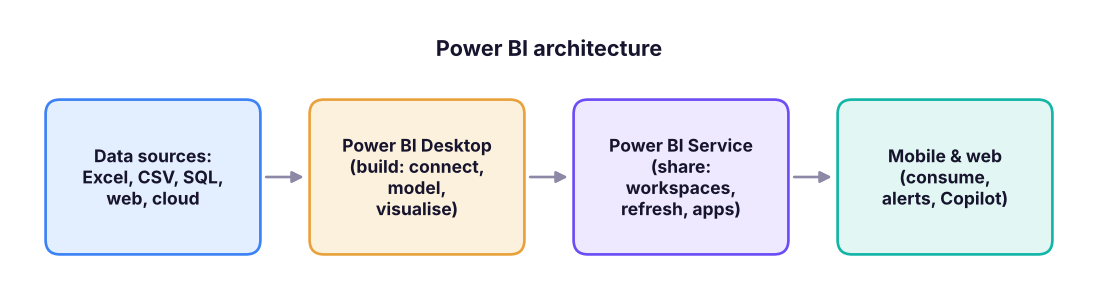
| Component | What it is | Who uses it |
|---|---|---|
| Power BI Desktop | Free Windows application to build data models and reports (.pbix) |
Analysts, developers |
| Power BI Service (app.powerbi.com) | Cloud site to publish, share, schedule refresh, create dashboards and apps | Analysts and report consumers |
| Power BI Mobile | iOS/Android apps to view reports and get alerts | Managers on the go |
| Power BI Report Builder | Paginated, print-ready reports (invoices, statements) | Report developers |
| On-premises data gateway | Secure bridge so the cloud can refresh data from your own servers | Admins |
| Power BI Report Server | Self-hosted option for organisations that cannot use the cloud | IT |
| Copilot | AI assistant that writes DAX, builds report pages and summarises insights (needs a Fabric/Premium capacity) | Everyone |
In Power BI a report is one or more pages of interactive visuals built on a data model. A dashboard (Service only) is a single page of pinned tiles from different reports. Many teams use reports only, or share them as an app.
Licences in brief
| Licence | Use |
|---|---|
| Power BI Desktop | Free: build and save locally |
| Free (Service) | Personal use in "My workspace"; cannot share with others |
| Pro | Publish and share with other Pro users (about US$14 per user per month) |
| Premium Per User / Fabric capacity | Larger models, AI features, share with free users |
(Prices change; check Microsoft's current pricing page.)
Installing Power BI Desktop
- Easiest: open the Microsoft Store, search "Power BI Desktop" and click Install (it updates itself every month).
- Or download it from the Microsoft Power BI website → Download → Power BI Desktop.
- Requirements: Windows 10/11 (64-bit), 4 GB+ RAM (8 GB+ recommended). There is no Mac version: Mac users can use the Service in a browser, a Windows virtual machine, or Windows 365.
- Start the app and sign in with a work or school account (optional for building locally).
The three views
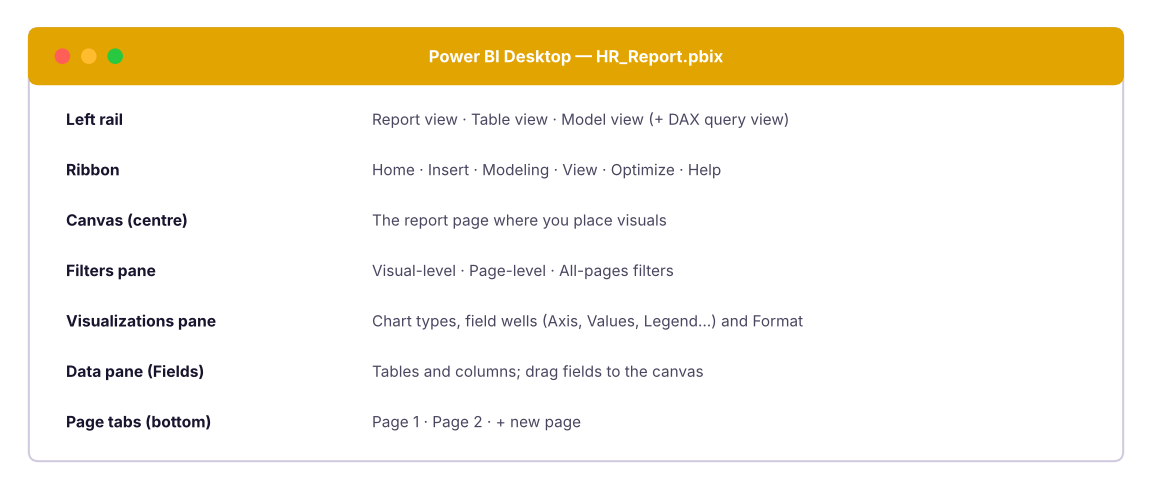
| View | Icon | Use it to |
|---|---|---|
| Report | bar chart | Design the report pages |
| Table (Data) | grid | Inspect the data and create calculated columns and measures |
| Model | diagram | See and edit relationships between tables |
| DAX query view | { } |
Run DAX queries and test measures |
ETL and the analytics process
ETL = Extract (get data from sources), Transform (clean and reshape it), Load (store it in the model). In Power BI, Extract and Transform are done in Power Query, and Load puts the result into the data model. (You met Power Query in Excel Lesson 12: it is the same engine.)

Always start with the question: "Why are people leaving?" decides which data and visuals you need. The worst Power BI reports are tours of every chart type with no question.
Your first report: HR attrition
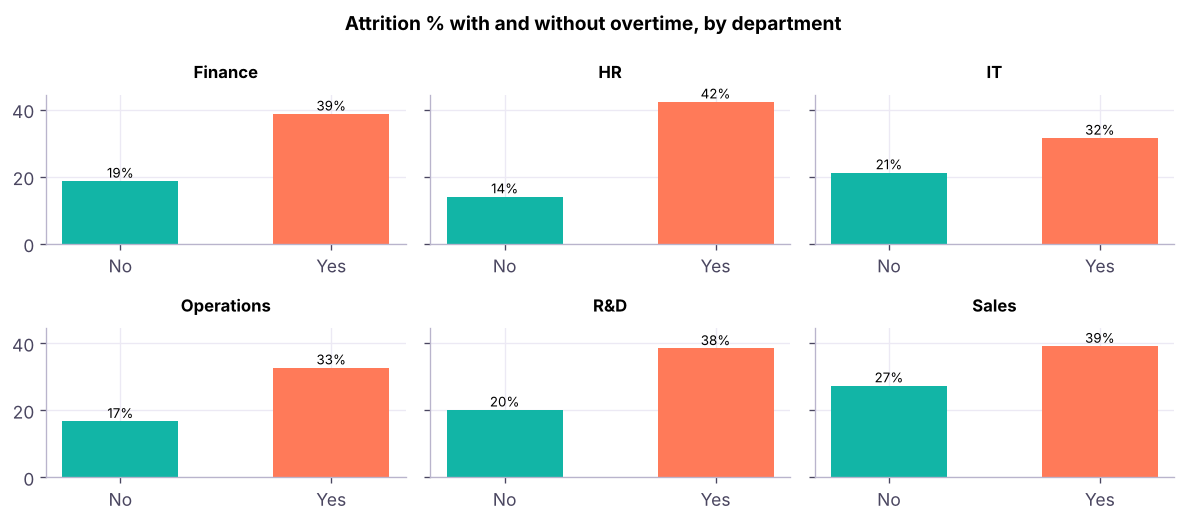
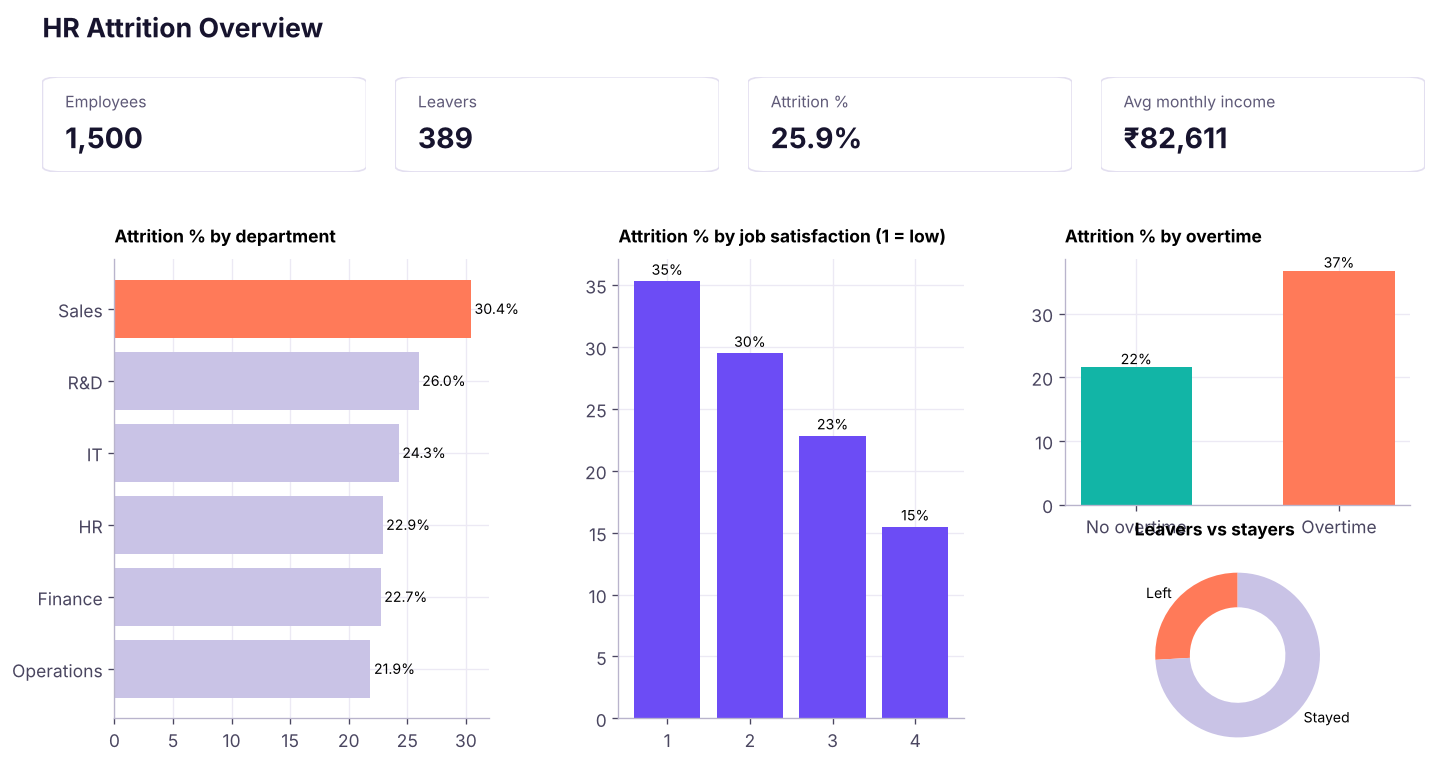
HR wants a one-page report on the company's 1,500 employees: how many there are, how many left (attrition), where attrition is highest, and whether overtime, job satisfaction or income play a role. Use hr_employees.csv.
The data (first rows):
import pandas as pd
hr = pd.read_csv("hr_employees.csv", parse_dates=["hire_date"])
print(hr.shape)
hr.head(5)(1500, 15)
| emp_id | gender | age | department | job_title | education | hire_date | years_at_company | monthly_income | job_satisfaction | overtime | distance_from_home_km | performance_rating | city | attrition | |
|---|---|---|---|---|---|---|---|---|---|---|---|---|---|---|---|
| 0 | E00001 | Male | 39 | Operations | Operations Manager | Bachelor's | 2025-05-26 | 0 | 74500 | 2 | Yes | 28 | 3 | Bengaluru | No |
| 1 | E00002 | Female | 45 | IT | Tester | Bachelor's | 2020-10-17 | 5 | 61417 | 1 | No | 25 | 3 | Mumbai | No |
| 2 | E00003 | Male | 41 | IT | Tester | Bachelor's | 2019-05-06 | 6 | 59167 | 4 | Yes | 18 | 4 | Bengaluru | No |
| 3 | E00004 | Male | 21 | R&D | Data Scientist | Bachelor's | 2025-08-23 | 0 | 51500 | 4 | No | 28 | 1 | Mumbai | Yes |
| 4 | E00005 | Male | 41 | Sales | Sales Executive | Master's | 2015-08-24 | 10 | 128333 | 1 | No | 3 | 2 | Pune | No |
Step 1: get the data
- Home → Get data → Text/CSV → choose
hr_employees.csv. - The preview shows the columns and detected data types. Click Transform Data (not Load) to check types in Power Query.
- Confirm:
age,years_at_company,monthly_income,job_satisfaction,performance_ratingare whole numbers;hire_dateis Date; the rest are text. - Home → Close & Apply.
In the Data pane you now see the table hr_employees with a Σ next to numeric fields (they can be summed) and no symbol next to text fields.
Step 2: KPI cards
Drag fields onto the canvas, then choose the Card visual:
- Employees = Count of
emp_id - Attrition (leavers): use a measure (Lesson 3 explains measures):
Leavers = CALCULATE ( COUNTROWS ( hr_employees ), hr_employees[attrition] = "Yes" ) - Attrition % =
DIVIDE ( [Leavers], COUNTROWS ( hr_employees ) ), formatted as a percentage - Average monthly income = Average of
monthly_income
n = len(hr); leavers = (hr.attrition == "Yes").sum()
print(f"Employees      : {n:,}")
print(f"Leavers        : {leavers:,}")
print(f"Attrition %    : {leavers / n:.1%}")
print(f"Avg income (₹) : {hr.monthly_income.mean():,.0f}")Employees : 1,500 Leavers : 389 Attrition % : 25.9% Avg income (₹) : 82,611
Step 3: bar, column and donut charts
- Clustered bar chart: Y-axis
department, X-axis =Attrition %→ ranks departments. - Clustered column chart: X-axis
job_satisfaction, Y-axisAttrition %. - Donut chart: Legend
attrition, Values = count ofemp_id. - Matrix: Rows
department, Columnsovertime, ValuesAttrition %(turns into a heat map with conditional formatting, Lesson 5). - Slicers:
gender,education,city.
Step 4: a calculated column with DAX
We want to see joining trends by year, but the table has only hire_date. Add a calculated column: Table view (or Modeling) → New column:
Hire Year = YEAR ( hr_employees[hire_date] )A calculated column is evaluated row by row when the data loads and stored in the model, just like a new column in Excel. Now a line/column chart of headcount by hire year works:
hr["hire_year"] = hr.hire_date.dt.year
by_year = hr.groupby("hire_year").agg(hired=("emp_id", "count"), left=("left", "sum"))
by_year["attrition_%"] = (by_year.left / by_year.hired * 100).round(1)
by_year.tail(8)| hired | left | attrition_% | |
|---|---|---|---|
| hire_year | |||
| 2019 | 82 | 16 | 19.5 |
| 2020 | 85 | 20 | 23.5 |
| 2021 | 120 | 22 | 18.3 |
| 2022 | 136 | 35 | 25.7 |
| 2023 | 196 | 60 | 30.6 |
| 2024 | 234 | 71 | 30.3 |
| 2025 | 284 | 93 | 32.7 |
| 2026 | 64 | 17 | 26.6 |