
Visuals, Filters, Drill-through, Tooltips, Buttons & Report Design
Turn a model into an interactive, well-designed report. Choose visuals, format them (cards, matrix, charts, gauge, KPI, maps, images), use visual, page and report filters, edit interactions, drill-down and drill-through, custom tooltips, bookmarks and buttons, conditional formatting, themes and design principles.
- Pick the right visual for each question and configure its field wells and formatting
- Apply visual, page and report-level filters, Top N, relative date filters and slicer sync
- Control cross-filtering with Edit interactions; add drill-down, drill-through and report-page tooltips
- Build navigation with buttons, bookmarks, page navigation and a selection pane
- Apply themes and conditional formatting, and follow layout, colour and accessibility rules
Choosing the visual
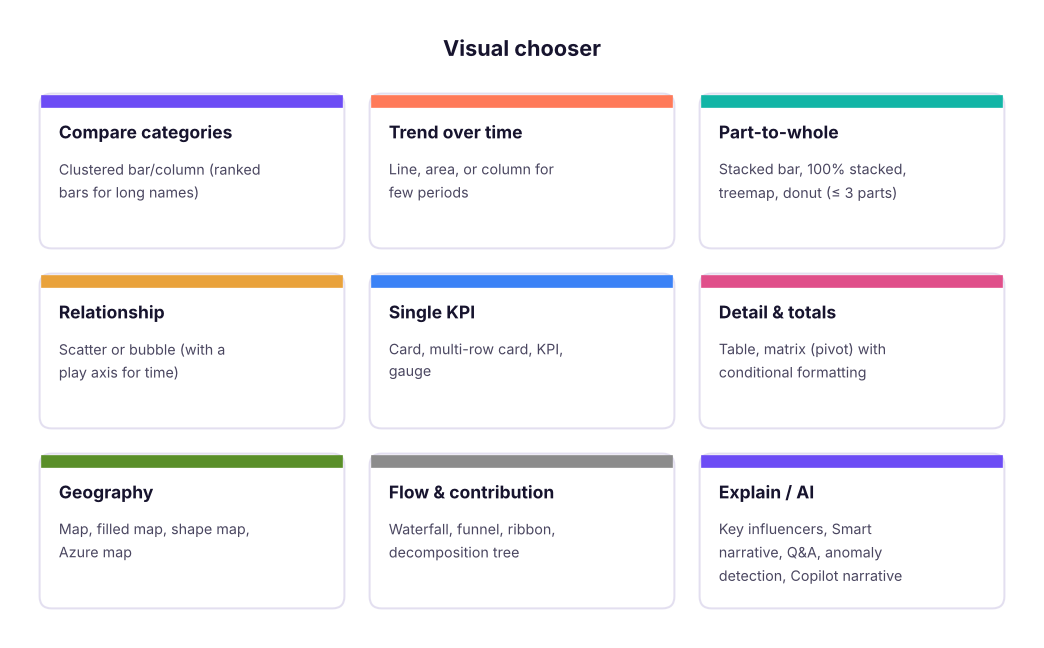
| Visual | Fields | Good for | Watch out |
|---|---|---|---|
| Card / multi-row card | Values | One or few headline numbers | Format display units (K, M, Cr) and add a clear label |
| Clustered bar / column | Axis, Values, Legend | Comparisons | Sort descending, start at zero, ≤ 15 bars |
| Stacked / 100% stacked | Axis, Legend, Values | Composition | Only the bottom segment is easy to compare |
| Line / area | X-axis (date), Y-axis, Legend | Trends | Limit to ~5 lines; use a continuous date axis |
| Line + clustered column | Shared axis, column values, line values | Two measures with different scales (secondary axis) | Label both axes |
| Waterfall | Category, Y-axis | Bridge from start to end (profit walk) | Needs an ordered category |
| Scatter / bubble | X, Y, Size, Details, Play axis | Relationships and outliers | Add Details so each point is an entity |
| Treemap | Group, Values | Hierarchical share of total | Many tiny rectangles are unreadable |
| Donut / pie | Legend, Values | 2–3 parts | More than 4 slices = use a bar |
| Matrix | Rows, Columns, Values | Pivot tables with drill and subtotals | Use conditional formatting for heat maps |
| Table | Columns | Exact values, detail list | Keep it short; a table is not a dashboard |
| KPI / Gauge | Value, Target, Trend axis | Progress to a target | Gauges waste space; prefer KPI cards |
| Funnel | Stage, Values | Drop-off between stages | |
| Map / Filled map | Location, Size, Legend | Geography | Geocoding needs clean place names (City, State, Country) |
| Slicer | Field | Filter the page | Styles: list, dropdown, tiles, between (range), relative date |
| Decomposition tree | Analyze, Explain by | Drill into drivers | Interactive exploration |
| Key influencers | Analyze, Explain by | AI finds what drives a metric | Needs a binary/numeric target |
| Smart narrative | Auto-text | Written summary that updates | Check the wording |
Formatting essentials
Select a visual → Format visual (paint-roller icon): Visual tab (axis, labels, colours, legend, gridlines, title) and General (title, size, position, background, border, alt text).
| Task | Where |
|---|---|
| Display units and decimals | Format → Callout value / Data labels → Display units: Thousands, Lakhs (not built in; use Millions) or custom format strings |
| Sort | … menu → Sort axis (by value or by another field) |
| Colour a highlighted series | Format → Colors → per-category colours or conditional |
| Titles that state the insight | General → Title → fx (dynamic title from a measure) |
| Accessibility | General → Alt text; keep contrast high; do not rely on colour alone |
| Copy formatting | Home → Format painter |
| Align / distribute | Format → Arrange → Align and distribute; hold Shift to multi-select |
| Group visuals | Select several → Format → Group |
Create a measure Title Sales = "Sales by " & SELECTEDVALUE ( dim_territory[country], "all countries" ) & " in " & SELECTEDVALUE ( dim_date[year], "all years" ) and bind it in Title → fx → Field value. The title now reflects the user's selections.
Filters: three levels
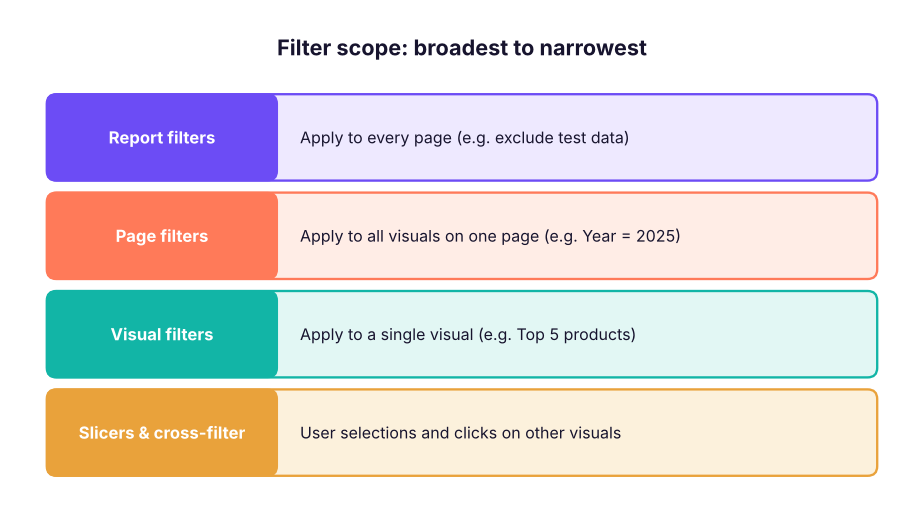
Use the Filters pane (right side). Filter types:
| Filter type | Behaviour |
|---|---|
| Basic | Tick values from a list |
| Advanced | "contains", "starts with", "is greater than", with AND/OR |
| Top N | Top/Bottom N items by a measure (even one not in the visual) |
| Relative date | "Last 6 months", "this year", "next 7 days" |
| Relative time | Last 4 hours etc. |
Tips: Require single selection in a slicer; Sync slicers across pages (View → Sync slicers); the "Include" / "Exclude" options on a selection filter in or out; lock the filters pane or hide it for consumers.
Edit interactions
By default clicking a bar cross-filters other visuals. Select the source visual → Format → Edit interactions → then on each target visual click the Filter, Highlight or None icon. Example: a KPI card for "overall sales" should ignore the clicks on the country chart (set to None), while the product chart should filter.
Drill-down and drill-through
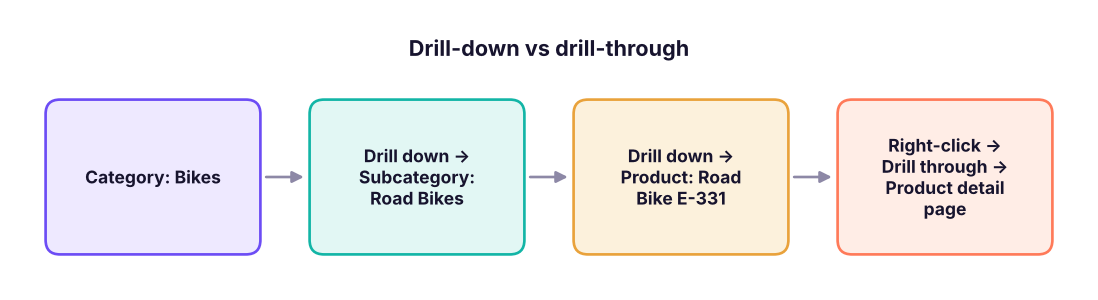
- Drill-down: needs a hierarchy (Lesson 2). Use the arrow buttons at the top of the visual: ↑ drill up, ↓ drill mode, ⇊ go to the next level in the hierarchy, ⇈ expand all.
- Drill-through: create a detail page → in the Visualizations pane, drag
productinto Drill through → Add drill-through fields here → Power BI adds a back button automatically. Users right-click a product in any visual → Drill through → Product detail. Use it for "customer 360", "order detail" and "product detail" pages. Keep all filters keeps slicer context. - Cross-report drill-through links to a separate report in the Service.
Report-page tooltips
A tooltip page shows a mini-report when hovering over a data point.
- Add a new page; Format page → Page information → Allow use as tooltip on; Page size → Tooltip.
- Add visuals (a KPI, a small trend line, top 3 products) using fields that respond to the hovered item.
- In the main visual: Format → General → Tooltips → Type Report page → choose the page.
- Hide the tooltip page from navigation (right-click the tab → Hide page).
Buttons, bookmarks and navigation
| Feature | What it does | Use |
|---|---|---|
| Buttons (Insert → Buttons) | Back, Bookmark, Page navigation, Q&A, Web URL, Apply all slicers, Clear all slicers | Menus, navigation bars, reset filter |
| Bookmarks (View → Bookmarks) | Save the current state (filters, slicer selections, visibility, spotlight) of a page | Story-telling views, toggle between visuals |
| Selection pane (View → Selection) | List, name, show or hide every object on a page | Required for bookmark toggles |
| Page navigator (Insert → Navigator) | Auto-generated tab buttons for pages or bookmarks | Menu |
| Conditional visibility | Bookmarks that show/hide visuals | "Chart ⇄ Table" toggle |
- Place a column chart and a table on top of each other.
- Selection pane: hide the table → View → Bookmarks → Add → name it "Chart view"; make the table visible and hide the chart → Add → "Table view". Untick Data in each bookmark's options so slicers are not reset.
- Insert two buttons and set Action → Bookmark → choose the matching bookmark.
Conditional formatting
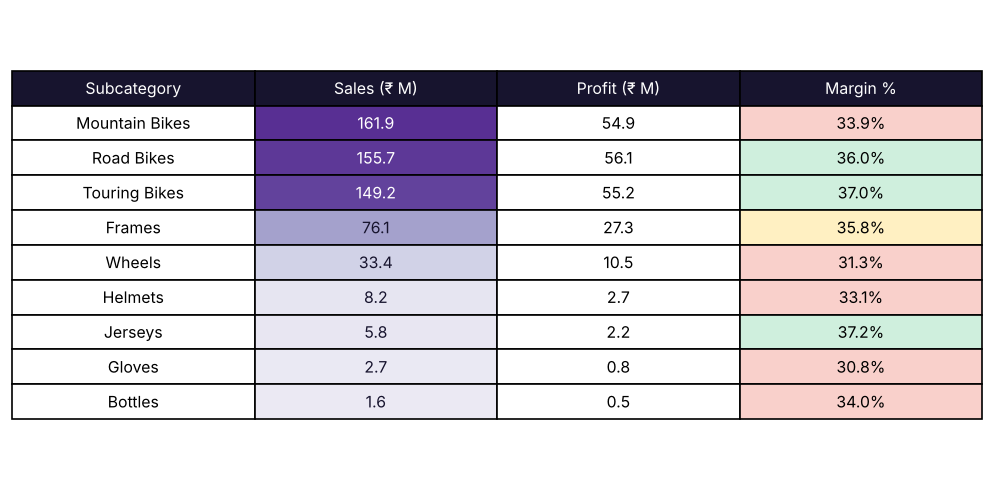
| Where | How |
|---|---|
| Table / matrix cells | Format → Cell elements → Background colour / Font colour / Data bars / Icons / Web URL → fx → Gradient, Rules or Field value |
| Column / bar colour | Format → Colors → fx → rules (green above target, red below) |
| Card text colour or title | fx on the callout/title |
| Based on a measure | Create a measure returning a hex colour: Margin Colour = IF ( [Profit Margin %] >= 0.35, "#1E8E5A", "#C0392B" ) then Field value |
Themes
View → Themes offers built-in themes; you can download community themes or Customize current theme (colours, fonts, defaults). A theme JSON file (View → Themes → Browse for themes) applies one consistent look to every visual:
{
  "name": "SkillNavora",
  "dataColors": ["#6C4CF5", "#FF7A59", "#12B5A6", "#E9A23B", "#3B82F6", "#E04F8A"],
  "background": "#FFFFFF", "foreground": "#17142E", "tableAccent": "#6C4CF5",
  "textClasses": { "title": { "fontFace": "Segoe UI Semibold", "fontSize": 14, "color": "#17142E" } }
}
Apply the company theme to every report so they look consistent, and edit colours in one place.
Report design principles
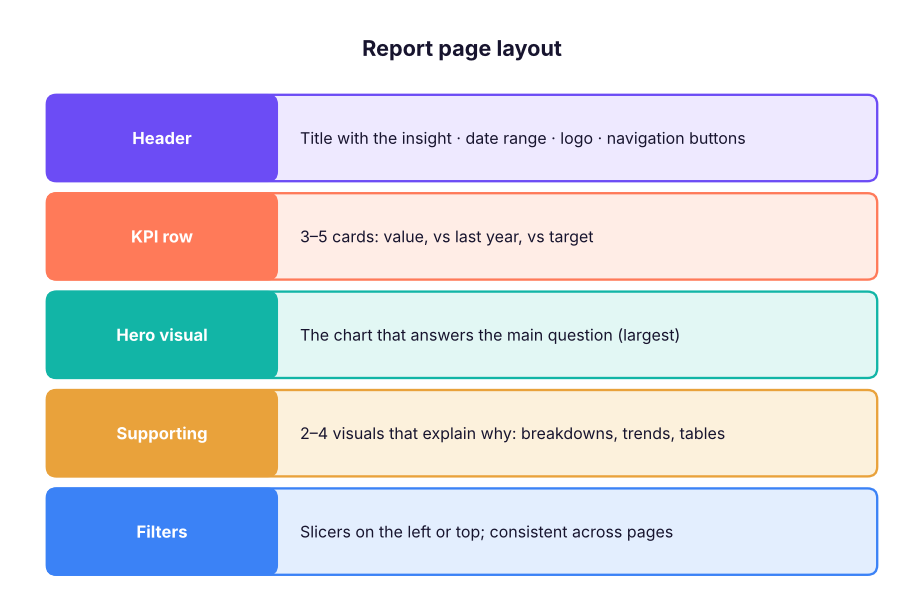
- Start from the audience and decision, not from the data: what will they do differently?
- Hierarchy: most important top-left; big numbers first; details lower.
- Less is more: 5–8 visuals per page; remove gridlines, borders and chart junk.
- Consistent colour logic: one brand colour plus one highlight; red and green only for bad/good; the same colour always means the same thing.
- Align and space visuals on a grid; same sizes for similar charts.
- Label for meaning: insight titles, units (₹, %), clear axis titles, "as of" dates.
- Accessible: contrast, alt text, tab order (Format → Tab order), do not use colour alone, test on mobile layout (View → Mobile layout).
- Performance: fewer visuals, summarised data, no huge tables; check Optimize → Performance analyzer.
Q&A, images and mobile
- Q&A visual: users type "total sales by country in 2025" and get a chart. Improve it with synonyms (Model view → Linguistic schema / Q&A setup).
- Images and logos: Insert → Image (or text box). For images in data (product photos), set the column's Data category → Image URL.
- Mobile layout: View → Mobile layout; drag key visuals into a phone-shaped canvas.
- Accessibility and exporting: export to PDF or PowerPoint (File → Export), analyse in Excel, subscribe in the Service.
Copilot can generate a report page from a prompt, suggest visuals for your fields, write summaries ("Summarise this page") and answer questions about the data. Key influencers, Decomposition tree and Smart narrative are built-in AI visuals; anomaly detection (Analytics pane) flags unusual spikes. Always verify AI-generated visuals and text against real numbers.
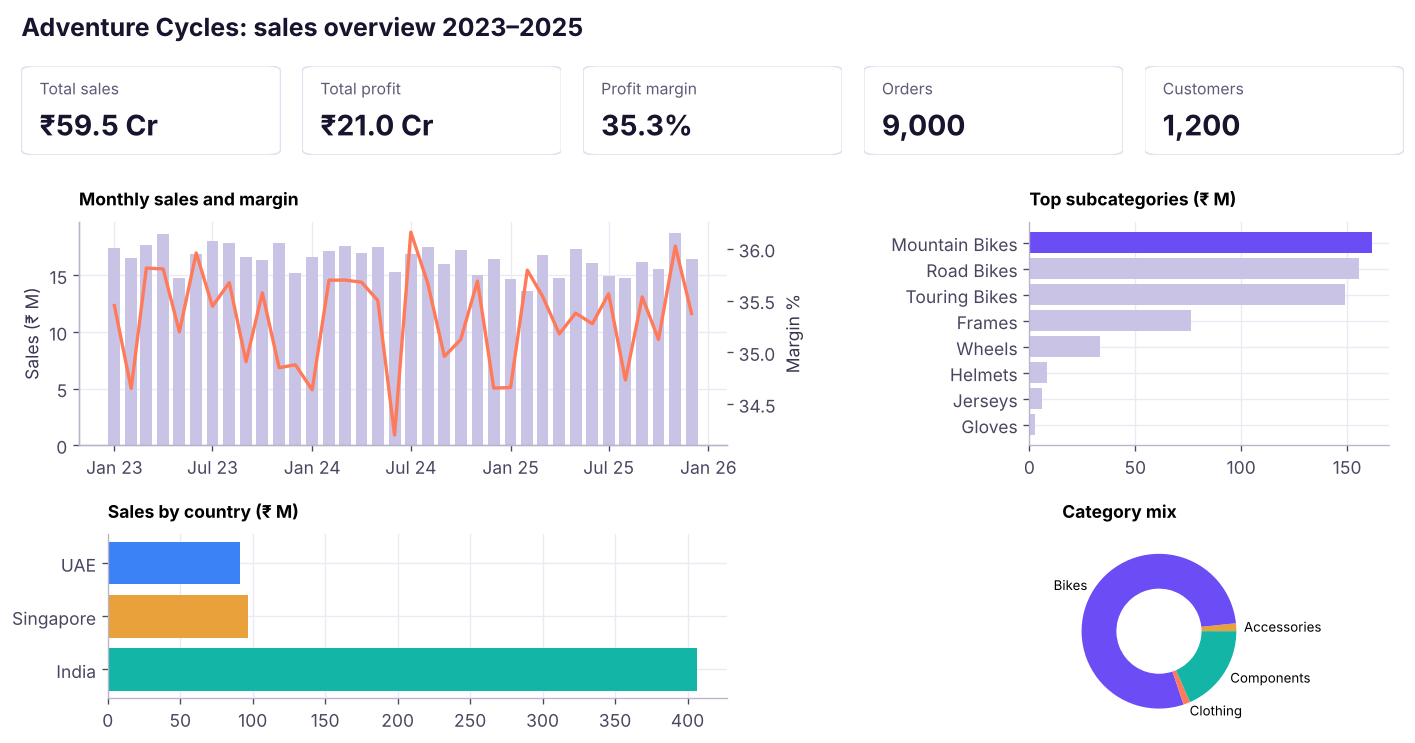
A mini case: the Adventure Cycles overview page
Plan the page before you build it:
| Element | Fields / measure | Visual |
|---|---|---|
| Title | Dynamic title measure | Text box |
| KPI row | Total Sales, Total Profit, Profit Margin %, Orders, each with vs-last-year |
4–5 cards |
| Hero | Monthly sales and profit margin | Line + column |
| Breakdown 1 | Sales by category (Top N subcategories) | Bar |
| Breakdown 2 | Sales by country | Map or bar |
| Drill-through | Product detail page | Table + KPIs |
| Filters | Year, Country, Category | Slicers |
Summary
- Choose visuals from the question; format with insight titles, units, sorting and accessible colours.
- Filters work at visual, page and report level (Basic, Advanced, Top N, Relative date); use slicers, sync them across pages, and Edit interactions to control cross-filtering.
- Drill-down needs a hierarchy; drill-through jumps to a detail page; tooltip pages show mini-reports on hover.
- Buttons + bookmarks + the Selection pane build navigation and chart/table toggles.
- Use conditional formatting (rules, gradients, field value from a measure) and themes for consistency.
- Design for the decision: hierarchy, few visuals, consistent colour logic, alignment, labels, accessibility and mobile layout.
1. Which filter level affects every page of a report?
2. How do you jump from a product in a chart to a detail page for that product?
3. What do bookmarks capture?
4. Which feature stops a card from reacting when you click a bar chart?
5. When is a donut chart appropriate?
6. What is the benefit of a theme JSON file?
Using the Adventure Cycles model: (1) build the overview page above; (2) add a Year slicer and a Country slicer; (3) create a drill-through page for Product with sales, profit, margin and a monthly trend; (4) add a bookmarked toggle between "Sales" and "Profit" using a field parameter or bookmarks; (5) apply conditional formatting to the margin in a matrix and write a dynamic title.
Show solution
(1) Cards for the five measures; line + clustered column for monthly sales and margin; bar for top subcategories; bar for country; donut for category mix. (2) Slicer visuals with dim_date[year] (tile style) and dim_territory[country] (dropdown). (3) New page → drag dim_product[product] into Drill through; add a back button. (4) Modeling → New parameter → Fields → add Total Sales, Total Profit; use the parameter on the chart values; place its slicer as a toggle. (5) Matrix of subcategory × country with Profit Margin %; Cell elements → Background colour → Rules; title measure with SELECTEDVALUE.
Q: How do you design an effective Power BI dashboard? Start from the audience and decision; put headline KPIs top-left; use few visuals with insight titles; consistent colour and spacing; allow drill-down/through; test with users; check performance and accessibility.
Q: Drill-down vs drill-through? Drill-down navigates levels of a hierarchy within a visual; drill-through navigates to another page filtered by the selected item.
Q: What are the filter levels and how do slicers differ? Visual, page and report filters are set by the author in the Filters pane; slicers are on-canvas controls that users change, and they can be synced across pages.
Q: How would you let users toggle between a chart and a table? Two bookmarks that show/hide the visuals through the Selection pane, and two buttons linked to those bookmarks.
Practise more online
Free, trusted places to test yourself on this topic. Links open the original site in a new tab.