
AI in Excel & Office: Copilot, Gemini, Claude, Python in Excel & Agents
Use AI where analysts work every day. Work with Copilot in Excel (formulas, insights, charts, the COPILOT function), Gemini in Google Sheets and Excel add-ins, Claude and other assistants for formulas and files, Python in Excel, and office agents that perform multi-step tasks, and learn how to prompt, verify and stay safe.
- Prepare a workbook so AI tools understand it (Tables, clear headers, no merged cells)
- Use Copilot and Gemini-style assistants to explain, write and debug formulas, create pivots and charts, and summarise data
- Use the Excel COPILOT function and Python in Excel for text, classification and analysis inside cells
- Describe what office agents do and what controls they need
- Verify AI-generated formulas and numbers with independent checks
The AI-in-Excel landscape
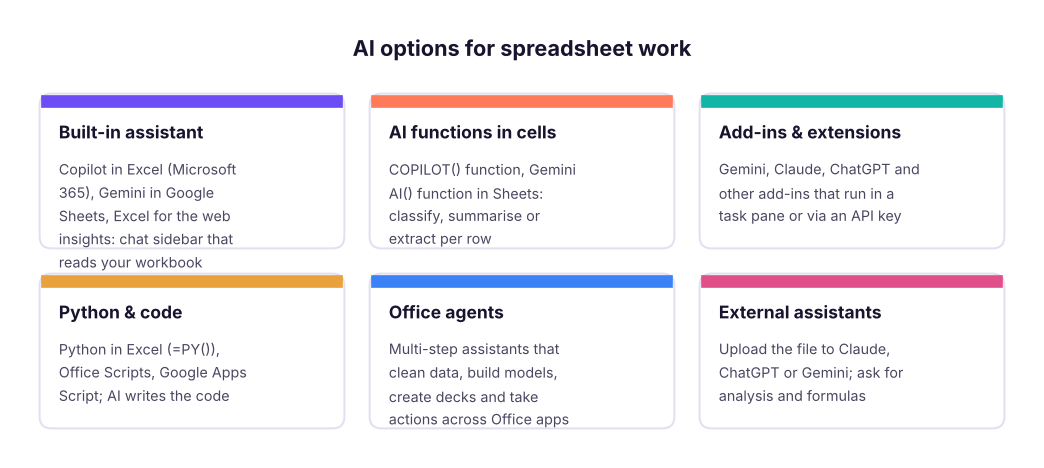
Step 0: make your workbook AI-ready
AI assistants can only reason about data they can see and parse. The same rules that make pivot tables work (Excel Lesson 1) make AI work:
- Convert data to an Excel Table (
Ctrl + T) with a clear name (tblSales) and one header row. - Descriptive column names (
order_date,sales_inr) instead ofCol1; add units. - No merged cells, blank rows or notes inside the data; keep totals outside.
- One sheet per dataset; a small Data dictionary sheet that defines columns and metrics (AI reads it too).
- Remove or mask sensitive columns before connecting an AI service.
- Save to OneDrive/SharePoint (Copilot needs cloud-saved files with AutoSave on).
Copilot in Excel
Needs a Microsoft 365 Copilot licence and your data formatted as a Table or range with headers.
| Task | Example prompt |
|---|---|
| Explain | "Explain what column H does and how it is calculated" |
| Formulas | "Add a column that shows profit margin %" / "Write a formula that looks up the manager's name from the Managers table" |
| Insights | "Show me insights about sales by region" → Copilot adds pivot tables and charts |
| Highlight | "Highlight rows where discount > 20% and profit is negative" (conditional formatting) |
| Sort / filter | "Sort by sales descending and filter to Technology" |
| Pivot & charts | "Create a pivot table of sales by category and year with YoY %" |
| Clean up | "Fix the inconsistent city names" / "Split full name into first and last name" |
| Analyse with Python | "Run a correlation between discount and profit and plot it" (uses Python in Excel) |
- Open your workbook (saved in OneDrive) → Home → Copilot.
- Select the Table (or let Copilot detect it).
- Ask one thing at a time, with column names: "Add a column margin_pct = profit / sales, formatted as a percentage."
- Read the proposed formula and its explanation before clicking Insert column.
- Check three rows by hand, and one total against a plain
SUM. - Undo (
Ctrl + Z) if wrong, and rephrase with more detail.
The COPILOT() function
Microsoft 365 also provides a COPILOT function that sends text and cell ranges to the model and returns results into cells that spill and recalculate:
=COPILOT("Classify this customer review as Positive, Neutral or Negative", D2:D100)
=COPILOT("Summarise the main complaint in 6 words or fewer", D2)
=COPILOT("Extract the city name from this address", A2)
Use it for text tasks (classify, summarise, extract, translate, tag) over small to moderate ranges, not for arithmetic: use normal formulas for numbers. Results can change between recalculations and each call consumes model capacity; availability, limits and licensing change, so check Microsoft's current documentation. Convert important results to values (copy → paste values) once checked.
Here is the same classify-sentiment idea applied to the product reviews dataset, with the (non-AI) ground-truth labels already in the file, so you can see how to measure an AI's accuracy:
import pandas as pd
rev = pd.read_csv("product_reviews.csv")
print(rev.shape)
rev[["review_id", "product", "rating", "review_text", "sentiment"]].head(6)(1200, 5)
| review_id | product | rating | review_text | sentiment | |
|---|---|---|---|---|---|
| 0 | 1 | Speaker | 4 | Very comfortable to use all day | positive |
| 1 | 2 | Smartwatch | 5 | Very comfortable to use all day | positive |
| 2 | 3 | Smartphone | 4 | Delivery was quick and packaging was neat. great value for money, totally worth it | positive |
| 3 | 4 | Earbuds | 1 | Battery drains too fast | negative |
| 4 | 5 | Laptop | 2 | Delivery was late and the box was damaged | negative |
| 5 | 6 | Laptop | 2 | Refund process is very slow. heats up a lot while charging | negative |
# How would you evaluate an AI classifier? Compare its labels with a trusted label set.
# Here a deliberately weak keyword rule plays the role of "the AI" so you can see the evaluation method.
# (These reviews are synthetic and templated, so real reviews will be much harder to classify.)
neg_words = ("stopped", "late", "poor", "crashing")          # a deliberately small word list: an imperfect classifier
pos_words = ("excellent", "great", "amazing", "premium")
def guess(t):
    t = t.lower()
    n = sum(w in t for w in neg_words); p = sum(w in t for w in pos_words)
    return "negative" if n > p else ("positive" if p > n else "neutral")
rev["pred"] = rev.review_text.apply(guess)
acc = (rev.pred == rev.sentiment).mean()
print(f"Agreement with trusted labels: {acc:.1%}\n")
print(pd.crosstab(rev.sentiment, rev.pred, rownames=["actual"], colnames=["predicted"]))Agreement with trusted labels: 56.0% predicted negative neutral positive actual negative 204 206 0 neutral 0 175 0 positive 0 322 293
The cross-tab (a confusion matrix, ML track Lesson 15) shows where a classifier goes wrong. Do the same with an AI column: take 100 reviews you labelled yourself, compare, and only then trust it on 10,000.
Gemini in Google Sheets and with Excel
- Gemini in Google Sheets (Workspace plans): a side panel that can create tables, write formulas, summarise, generate charts and analyse trends, plus an
AI()function to run a prompt per row (classify, summarise, extract) similar toCOPILOT(). - Gemini and other LLM add-ins for Excel: some marketplaces offer add-ins or custom functions (for example
=GEMINI("prompt", A2)) that call a model through your own API key. They are useful for batch text tasks, but you must protect the key, watch the cost per call, and avoid sending sensitive data. - Apps Script / Office Scripts: AI can write the script; you review and run it.
Never paste an API key into a shared workbook or a cell others can read; use the add-in's secure settings, set a spending limit on the key, and rotate it if exposed. A key in a shared file is a billing and security incident waiting to happen.
Claude, ChatGPT and other assistants with your files
Upload a CSV or XLSX to a general assistant that can run code (analysis/code-execution tools). It reads the file, writes Python, runs it, and shows charts and tables: closer to an analyst than a chatbot that only talks.
A good first message with a file:
I've attached superstore_sales.csv (one row per order line, Jan 2023–Dec 2025, amounts in rupees).
1) Profile the data: row count, columns and types, missing values, duplicates, date range.
2) Compute total sales, profit and margin by year and category.
3) Find the three biggest drivers of low margin; quantify each.
4) Show your Python code, and tell me which assumptions you made.
Do not guess: if something cannot be computed from the file, say so.
Typical good behaviour: it prints the profile, shows code, makes charts. What you still do: spot-check numbers, make sure it used the right columns, and ask for the code so you can re-run it yourself. Assistants that run code produce reproducible analysis; those that only "think" may fabricate numbers.
| Assistant strengths | Check |
|---|---|
Writing and explaining formulas (even LET, LAMBDA, XLOOKUP, array formulas) |
Test on sample rows |
| Cleaning plans and Power Query M code | Preview the result; keep a backup |
| Building DAX measures | Validate against a pivot |
| Summarising and drafting commentary | Verify each number quoted |
| Designing dashboards and chart choices | Compare with your audience's needs |
Python in Excel
=PY( turns a cell into a Python editor (Formulas → Insert Python). It uses pandas, matplotlib, seaborn, statsmodels and scikit-learn, runs in Microsoft's secure cloud (no local Python needed), and reads Excel ranges with xl().
df = xl("tblSales[#All]", headers=True)          # Excel Table → pandas DataFrame
df.groupby("region")["profit"].sum().sort_values(ascending=False)
Ask Copilot: "Use Python to show the correlation between discount and profit and draw a scatter plot." Behind the scenes it writes the =PY() code. Check what it computed against this handbook's result:
sup = pd.read_csv("superstore_sales.csv")
print(f"Correlation discount vs profit margin (lines): {sup.discount.corr(sup.profit / sup.sales):.2f}")
print(sup.groupby(sup.discount.map(lambda d: f"{d:.0%}")).apply(lambda g: round(g.profit.sum() / g.sales.sum() * 100, 1)).rename("margin_%").to_string())Correlation discount vs profit margin (lines): -0.91 discount 0% 17.5 10% 5.9 15% 0.9 20% -4.6 30% -19.0 40% -26.3
A strong negative correlation, and margin turning negative from a 20% discount upwards: the same story as the SQL and Power BI lessons, arrived at a third way. Cross-checking tools against each other is how you build trust.
Office agents: the next step
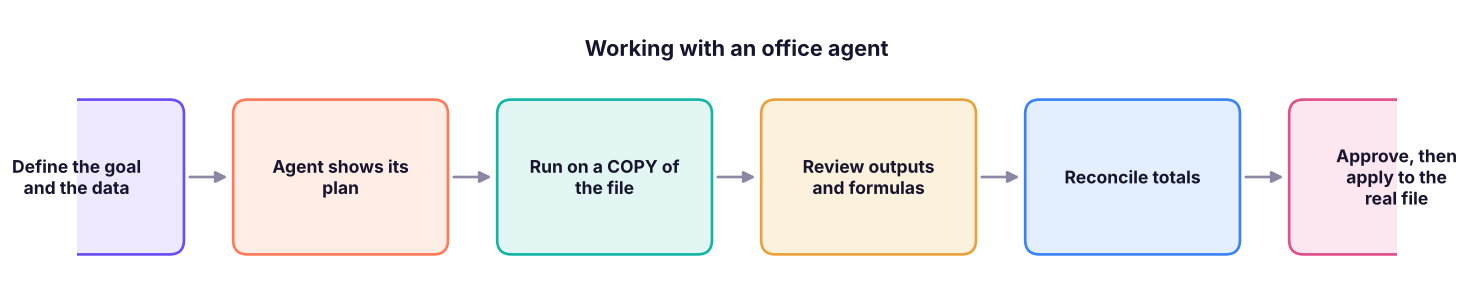
Agents go beyond answering: given a goal ("Clean this export, build a pivot by region, add a chart, and draft a three-slide summary"), they plan, use the spreadsheet or Office apps as tools, check results and iterate, then present the outcome for your approval. Microsoft, Google, Anthropic, OpenAI and others have all released agent modes for office work; names and capabilities change quickly, so evaluate any specific product (including whichever "Frontier"-style agent your organisation provides) against the questions below.
| Question to ask about any agent | Why it matters |
|---|---|
| What can it read and write? (files, mail, calendar, web) | Scope of risk |
| Does it show its plan and steps and ask before acting? | Oversight |
| Can I undo or review changes (version history)? | Recoverability |
| Where does data go (tenant, region, retention, training use)? | Compliance |
| How does it handle untrusted content (prompt injection in emails/web pages)? | Security |
| Does it produce formulas and sources or just pasted values? | Auditability |
| What does it cost per task? | Budget |
What AI does well and badly in spreadsheets
| Strong | Weak / risky |
|---|---|
| Explaining unfamiliar formulas and files | Large-scale precise calculation (use formulas/Python) |
| Drafting formulas, DAX, SQL, M code, VBA | Knowing your business rules unless told |
| Text tasks: classify, summarise, extract, translate | Consistent results every time (non-deterministic) |
| Suggesting charts and structure | Hidden assumptions (date ranges, definitions) |
Debugging errors (#N/A, #SPILL!) |
Anything involving sensitive data in the wrong tool |
| Documentation and commentary | Replacing review and sign-off |
A checklist before you trust an AI-built spreadsheet
- Totals reconcile with the source (
SUMof raw vs summary). - Row counts match (no lost or duplicated rows).
- Formulas are visible (not pasted values) and use absolute references correctly.
- Spot-check five random rows by hand.
- Edge cases: blanks, zero, negative, text in number columns, duplicates.
- Units and currency are labelled; dates are real dates.
- Assumptions are written on the sheet.
- A second tool or person confirms the headline number.
Summary
- Prepare data as Tables with clear headers, no merged cells, and a data dictionary; save in the cloud for Copilot.
- Copilot explains and writes formulas, creates pivots, charts, highlights and cleans data;
COPILOT()and Sheets'AI()apply prompts per row for text tasks. - General assistants that can run code make reproducible analyses from uploaded files; always request the code and assumptions.
- Python in Excel (
=PY()) brings pandas into cells; AI can write it, you verify it. - Agents plan and act across apps: work on a copy, require visible plans, approvals, undo, audit trail and clear data-handling terms.
- Verify with reconciliation, spot checks, edge cases and a second tool; protect keys and sensitive data.
1. What should you do first to help an AI understand your Excel data?
2. The COPILOT() function is best used for:
3. Why ask an assistant to show its Python code?
4. Which is a sensible control for an office agent?
5. An AI classifier labels reviews; how do you measure its quality?
6. Where should an API key for an Excel add-in be stored?
Using superstore_sales.csv: (1) ask an AI assistant with code execution to profile the data and compute margin by category and discount band; (2) write the pivot table version yourself; (3) compare the two and list any differences; (4) create three COPILOT()-style prompts (or Gemini AI() prompts) for a column of customer comments, and say how you would evaluate them on 50 labelled examples.
Show solution
Expected margins by discount band: 0% → 17.5%, 1–20% → 1.2%, >20% → −20.6% (overall 9.1%). Differences usually come from averaging margins instead of total profit ÷ total sales, or from using order lines versus orders. Prompts: "Classify as Positive, Neutral or Negative (one word)"; "Extract the product mentioned (or 'none')"; "Summarise the complaint in under 8 words". Evaluation: label 50 comments yourself, run the prompt, compute accuracy and a confusion matrix, inspect errors, refine the prompt, and re-test on a fresh sample.
Q: How would you use AI tools to speed up Excel analysis responsibly? Prepare structured data, ask specific questions, review generated formulas and pivots, reconcile totals, document assumptions, keep sensitive data out of unapproved tools, and keep a human sign-off.
Q: What is Python in Excel?
A feature that runs Python (pandas, matplotlib, scikit-learn) in cells via =PY(), in a secure cloud, reading Excel ranges with xl(), useful for analysis and charts that are hard with formulas.
Q: What is an AI agent in an office context and what are its risks? A system that plans and executes multi-step tasks using apps and files; risks include wrong actions, data leakage, prompt injection and lack of audit; mitigate with scoped permissions, approvals, copies and logs.
Q: How do you check an AI-generated formula? Test on a few rows including edge cases, compare totals with a simple independent calculation, read the formula's explanation, and make sure references and units are right.