Make numbers readable and insights jump out. Learn cell and number formats, write your own custom number formats (including lakhs and crores, K and M, and colour codes), and use conditional formatting with built-in rules and your own formulas.
● Live class 2✦ Excel for Microsoft 365, 2026Beginner⏱ 100 min
Formatting changes how a value looks, not what it is
This is the most important idea in this lesson. When you format 0.256 as 26%, the cell still contains 0.256. Every formula that uses the cell sees 0.256.
XSame stored value, different formats
A
B
C
1
Stored value
Format applied
What you see
2
0.256
Percentage, 0 decimals
26%
3
0.256
Percentage, 1 decimal
25.6%
4
1,234,568
Number with separator
1,234,567.89
5
46139
Date
27-Apr-2026
6
46139
Long date
Monday, 27 April 2026
7
0.6875
Time
16:30
C2=TEXT(A2,"0%")
C3=TEXT(A3,"0.0%")
C4=TEXT(A4,"#,##0.00")
C5=TEXT(A5,"dd-mmm-yyyy")
C6=TEXT(A6,"dddd, d mmmm yyyy")
C7=TEXT(A7,"hh:mm")
Column C uses the TEXT function to show exactly what each format produces. (TEXT returns text, so use it for labels, not for numbers you still need to calculate with.)
Watch outRounding by format vs rounding by formula
Formatting 2.456 with 1 decimal shows2.5 but keeps 2.456. Adding three such cells can show 7.4 while the visible numbers add up to 7.5. If the rounded value must be used in calculations (invoices, tax), round it with a formula: =ROUND(A2,1).
Cell formatting the professional way
Open Format Cells with Ctrl + 1. It has six tabs: Number, Alignment, Font, Border, Fill, Protection.
Goal
How
Bold header with fill colour
Home → Bold (Ctrl + B) and Fill Color, or Cell Styles → Heading
Wrap long text
Home → Wrap Text (Alt + H, W)
Centre a title across columns without merging
Ctrl + 1 → Alignment → Horizontal: Center Across Selection
Rotate header text
Alignment → Orientation
Thin borders around a table
Home → Borders → All Borders
Copy formatting
Format Painter (double-click it to paint many places)
Clear only formatting
Home → Clear → Clear Formats
Consistent look across a workbook
Page Layout → Themes, and Cell Styles
Common mistakesAvoid merged cells
Merged cells break sorting, filtering, copying, selecting columns and pivot tables. Use Center Across Selection instead: it looks the same and keeps every cell independent.
Built-in number formats
Format
Example display of 1234.5
Use for
General
1234.5
Default, no fixed format
Number
1,234.50
Quantities, amounts
Currency
₹1,234.50
Money, symbol next to the number
Accounting
₹ 1,234.50
Money in financial statements: symbol aligned at the left edge, zero shown as a dash
Ctrl + 1 → Number → Custom lets you write your own format code. Once you understand the structure, you can make dashboards that are much easier to read.
The four sections
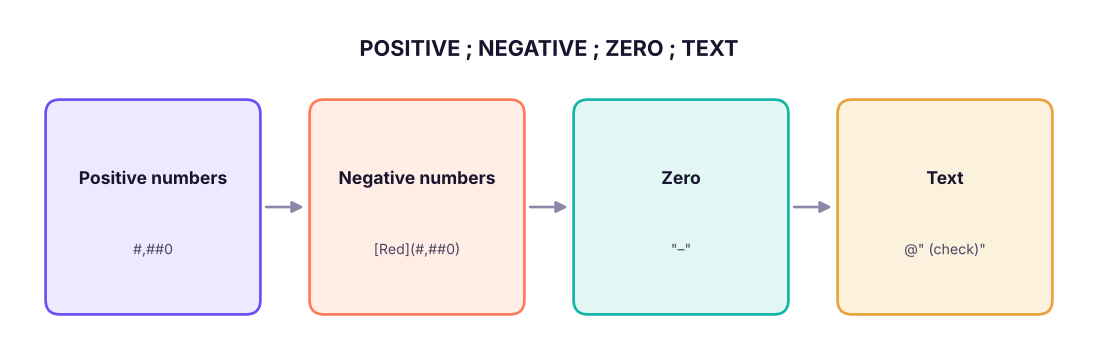
A format code can have up to four parts, separated by semicolons:
Text
POSITIVE ; NEGATIVE ; ZERO ; TEXT
#,##0    ; [Red]-#,##0 ; "–" ; @
A custom number format has up to four sections separated by semicolons.
Placeholder characters
Code
Meaning
Value 7.5 →
0
Digit, shows a zero if none
000.00 → 007.50
#
Digit, shows nothing if none
#.## → 7.5
?
Digit, shows a space (aligns decimals)
?.?? → 7.5␣
, (in the middle)
Thousands separator
#,##0
, (at the end)
Divide by 1,000 for each comma
#,##0, shows 12,500 as 13
%
Multiply by 100 and add %
0%
"text"
Show literal text
0" units"
@
The cell's text
"Dept: "@
[Red], [Blue], [Color10]
Colour
[Red]-0
[>=1000]
Condition
[>=1000]#,##0,"K";0
Custom formats you will reuse
Each result in column C was produced by Excel's TEXT function with the format code in column B.
XCustom format cookbook
A
B
C
1
Value
Format code
Result
2
12500
#,##0
12,500
3
12500
#,##0,"K"
13K
4
12500
#,##0.0,"K"
12.5K
5
8450000
#,##0.0,,"M"
8.5M
6
-3200
#,##0;(#,##0)
(3,200)
7
0
#,##0;-#,##0;"–"
–
8
45
0" units"
45 units
9
0.0725
0.0%
7.3%
10
7
000
007
11
9876543210
00000 00000
98765 43210
12
1500
[>=1000]#,##0.0,"K";0
1.5K
13
850
[>=1000]#,##0.0,"K";0
850
14
0.25
▲ 0%;▼ 0%
▲ 25%
15
-0.12
▲ 0%;▼ 0%
▼ 12%
C2=TEXT(A2,B2)
Each pattern is copied down/across to the other cells in its column.
TipUp and down arrows in KPIs
▲ 0%;▼ 0% (add [Color10] for green and [Red] for red: [Color10]▲ 0%;[Red]▼ 0%) is the classic format for "change versus last month" cells in dashboards. The arrow and colour change automatically with the sign.
Indian number format: lakhs and crores
Indian reports group digits as 12,34,56,789 (crore, lakh, thousand). If your Windows region is set to English (India), the standard #,##0 already groups this way. Otherwise use a conditional format:
There is no "divide by 1 lakh" comma trick in Excel (each trailing comma divides by 1,000), so for lakhs either divide in a helper column (as above) or use Power BI's display units.
Date and time format codes
Code
Shows (for 27-04-2026 14:05)
d, dd
27
ddd, dddd
Mon, Monday
m, mm
4, 04
mmm, mmmm
Apr, April
yy, yyyy
26, 2026
hh:mm
14:05
hh:mm AM/PM
02:05 PM
[h]:mm
Total hours beyond 24, for timesheets (e.g. 37:30)
"Q" with a formula
Quarter labels need a formula: ="Q"&ROUNDUP(MONTH(A2)/3,0)
Conditional formatting: let insights jump out
Home → Conditional Formatting changes a cell's look based on its value. It is how you turn a wall of numbers into something a manager understands in five seconds.
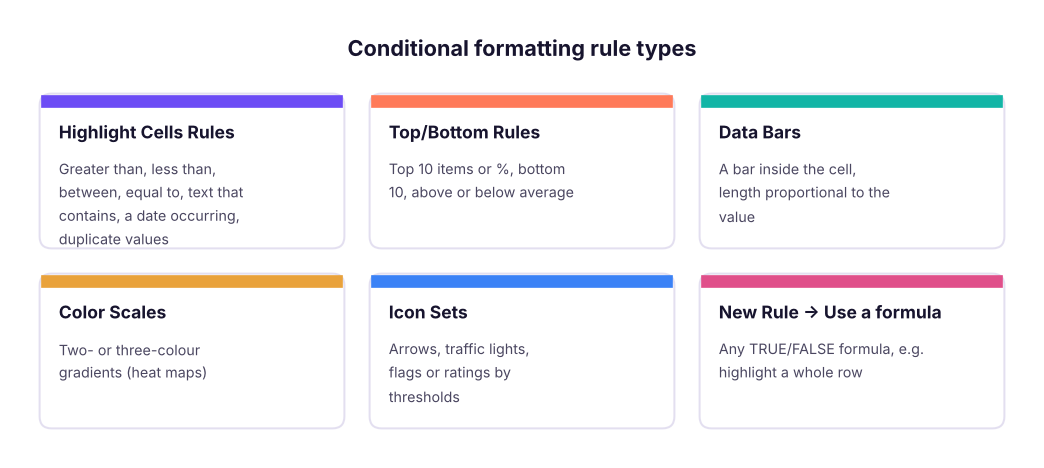
The five families of conditional formatting rules.
Highlight rules and Top/Bottom
In the table below, green marks sales above 1,50,000 and red marks profit below 0 (both "Highlight Cells Rules"):
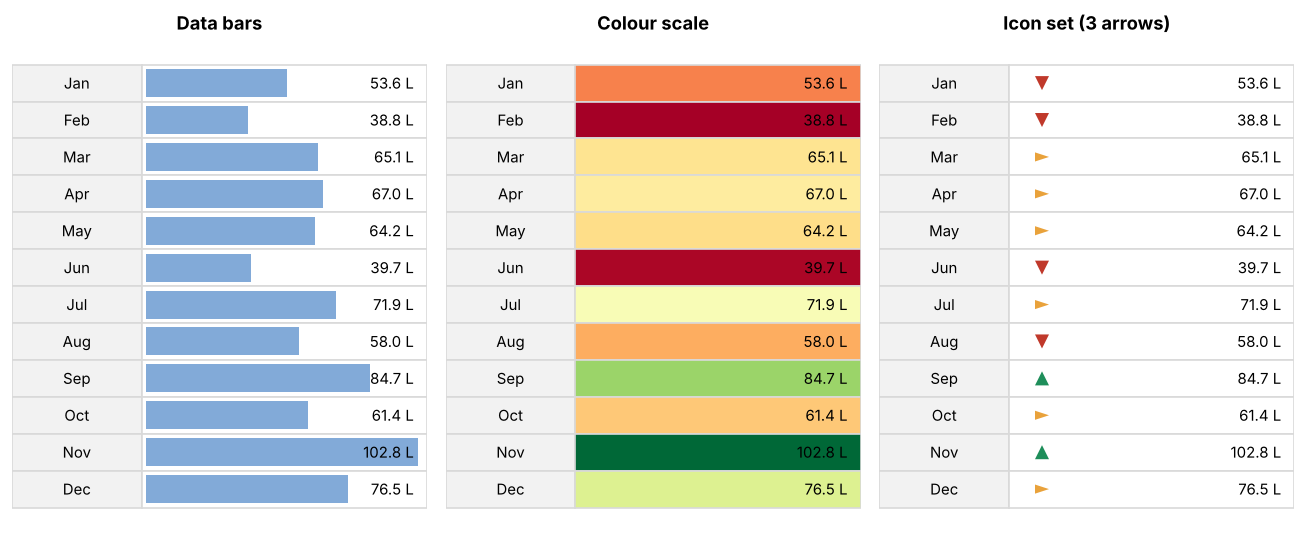
These visual rules are best seen on real data. Here they are applied to monthly sales from the Superstore dataset:
Data bars (left), a green–yellow–red colour scale (middle) and icon sets (right) applied to the same monthly sales.
Rule
When to use
Watch out
Data bars
Compare magnitudes inside a table
Negative values draw leftwards; set a fixed minimum of 0 if needed
Colour scales
Heat maps: sales by region × month, attendance grids
Red/green is hard for colour-blind readers; consider blue–white–orange
Icon sets
Status at a glance: on track, at risk, off track
Default thresholds are percentages of the range (67% / 33%); set them to numbers or percentiles that match your business targets
Under Manage Rules → Edit Rule you can change thresholds, choose "Show Bar Only" or "Show Icon Only", and reverse the icon order.
Custom formula conditional formatting
New Rule → Use a formula to determine which cells to format is the most powerful option. Write a formula for the top-left cell of your selection that returns TRUE for cells you want formatted. Dollar signs matter:
$ before the column ($D2) locks the rule to column D, so every cell in the row checks column D → the whole row is highlighted.
No $ before the row number lets the row change as Excel moves down the selection.
XHighlight whole rows where Department = Finance AND Salary > 1,00,000 — rule: =AND($C2="Finance",$F2>100000)
A
B
C
D
E
F
G
1
Emp ID
Name
Department
City
Join date
Salary
Rating
2
E101
Kavya Iyer
HR
Mumbai
28-02-2016
97,000
4
3
E102
Imran Reddy
Finance
Delhi
14-12-2019
157,000
3
4
E103
Harpreet Kulkarni
Finance
Mumbai
05-10-2024
131,000
4
5
E104
Diya Iyer
HR
Bengaluru
02-01-2024
90,000
4
6
E110
Vikram Joshi
Finance
Chennai
19-10-2022
75,000
5
7
E119
Rohan Das
Finance
Delhi
19-07-2018
97,000
5
Rows E102 and E103 meet both conditions. E110 and E119 are in Finance but earn less than 1,00,000, so they stay white.
More custom-formula recipes
Goal
Select
Formula
Zebra stripes (every other row)
the table
=MOD(ROW(),2)=0
Overdue tasks (due date before today, status not Done)
the table
=AND($E2<TODAY(),$F2<>"Done")
Values above the column average
C2:C100
=C2>AVERAGE($C$2:$C$100)
Duplicate IDs
A2:A100
=COUNTIF($A$2:$A$100,A2)>1
Weekend dates
A2:A100
=WEEKDAY(A2,2)>5
Row of the employee picked in a drop-down (H1)
the table
=$B2=$H$1
Missing values
the table
=ISBLANK(A2) or =A2=""
Top 3 per column
C2:C100
=C2>=LARGE($C$2:$C$100,3)
Step by stepCreate a whole-row highlight
Select the data without the header (for example A2:G21). The active cell must be in row 2.
Home → Conditional Formatting → New Rule → Use a formula to determine which cells to format.
Formula: =AND($C2="Finance",$F2>100000).
Click Format… → Fill → choose a colour → OK.
To edit later: Conditional Formatting → Manage Rules (choose "This Worksheet" to see all rules). Rules higher in the list win; tick Stop If True to prevent lower rules from also applying.
Common mistakesThe three most common conditional-formatting bugs
Wrong anchor: writing the formula for row 1 while the selection starts at row 2 shifts every result by one row.
Missing $: =C2="Finance" (no $) checks a different column for each cell, so only part of the row lights up.
Copying cells copies rules: pasting formatted cells many times creates hundreds of duplicate rules and slows the workbook. Clean up in Manage Rules, or paste values only.
Formatting a report: before and after
A clean report follows a few simple rules:
Right-align numbers, left-align text, and use the same number of decimals in a column.
Use thousands separators; show large values in K/M or lakh/crore with clear labels.
Bold headers and totals only; avoid using many colours.
Use one highlight colour for "needs attention" and keep everything else neutral.
Freeze the header row; make the column widths fit the content.
Add a title, the date range and the data source.
Do it with AIDo it with AI
Ask an assistant: "Write an Excel custom number format that shows values above 1 crore as '1.25 Cr', values above 1 lakh as '4.50 L', and smaller values with Indian comma grouping." Then test the answer with =TEXT(value, "format") on a few numbers before applying it. (A pure format can only scale by thousands, so a good answer will suggest a helper column or Power BI for lakhs and crores.)
Summary
Key takeaways
Formatting changes the display, never the stored value. Round with ROUND when it matters.
Avoid merged cells; use Center Across Selection.
Custom formats have four sections, positive;negative;zero;text, and support colours, conditions, text and scaling with trailing commas.
Conditional formatting families: highlight rules, Top/Bottom, data bars, colour scales and icon sets.
For whole-row highlights use a formula with $ before the column: =$C2="Finance".
Manage Rules shows priority; rule order and Stop If True decide which format wins.
Quick quiz6 questions · tap an answer to check it
1. A cell contains 0.4567 formatted as 0%. What value does =A1*100 return?
Answer: B. The stored value is still 0.4567, so the formula returns 45.67. Formatting only changes the display.
2. Which custom format shows 8,450,000 as 8.5M?
Answer: B. Two trailing commas divide by 1,000,000, and 0.0 shows one decimal.
3. In the format #,##0;[Red](#,##0);"–", how is -2500 shown?
Answer: B. The second section is for negative numbers: red, in brackets, without a minus sign.
4. You want to highlight entire rows where Status (column F) is "Late". Rows start at 2. Which rule is correct?
Answer: B. Locking the column with $ makes every cell in the row test column F; leaving the row free lets each row test itself.
5. What does "Center Across Selection" replace?
Answer: B. It centres text across several cells without merging them, so sorting and selecting still work.
6. Which conditional formatting type is best for a sales heat map of region × month?
Answer: C. Colour scales shade each cell by value, which creates a heat map.
ExerciseDashboard number formats
Write custom formats for: (a) revenue shown in thousands with "K" and no decimals; (b) month-on-month change shown as a green up arrow with one decimal percentage when positive, and a red down arrow when negative; (c) a 6-digit PIN code that must keep leading zeros.
Show solution
(a) #,##0,"K" (b) [Color10]▲ 0.0%;[Red]▼ 0.0%;"–" (c) 000000 (or store the PIN as text).
ExerciseConditional formatting practice
Using employees_small.csv: (1) colour-scale the salary column; (2) add an icon set to rating with green for 5, amber for 3–4 and red for 1–2; (3) highlight the whole row of anyone who joined after 1-Jan-2024.
Show solution
(1) Select F2:F21 → Color Scales → Green–Yellow–Red. (2) Select G2:G21 → Icon Sets → 3 traffic lights → Manage Rules → Edit: green when ≥ 5 (Number), amber when ≥ 3 (Number), otherwise red. (3) Select A2:G21 → New Rule → formula =$E2>DATE(2024,1,1) → choose a fill.
Interview cornerQuestions you may be asked
Q: What is the difference between formatting a number and rounding it?
Formatting changes only how the value looks; the full value is used in calculations. ROUND changes the stored value. Use ROUND when the rounded figure must flow into other calculations, such as invoices.
Q: How would you highlight the top 10% of customers by revenue?
Conditional Formatting → Top/Bottom Rules → Top 10% (change 10 to any value), or a formula rule =C2>=PERCENTILE.INC($C$2:$C$500,0.9) for more control.
Q: Why might a conditional format highlight the wrong rows?
The formula was written for a different starting row than the active cell of the selection, or the $ signs are wrong.
Practise more online
Free, trusted places to test yourself on this topic. Links open the original site in a new tab.