Write formulas with confidence. Understand operators and their order, relative, absolute and mixed references, and every aggregate function you need, from SUM and COUNTA to SMALL, LARGE, SUMIFS, COUNTIFS, MAXIFS, SUBTOTAL and AGGREGATE.
● Live class 3✦ Excel for Microsoft 365, 2026Beginner⏱ 110 min
A formula is any calculation that starts with =. It can use cell references, numbers, operators and functions: =B2*C2, =(B2-C2)/C2, =SUM(B2:B10)*1.18.
A function is a named, ready-made calculation inside a formula: SUM, AVERAGE, IF. A function has a name, brackets and arguments separated by commas.
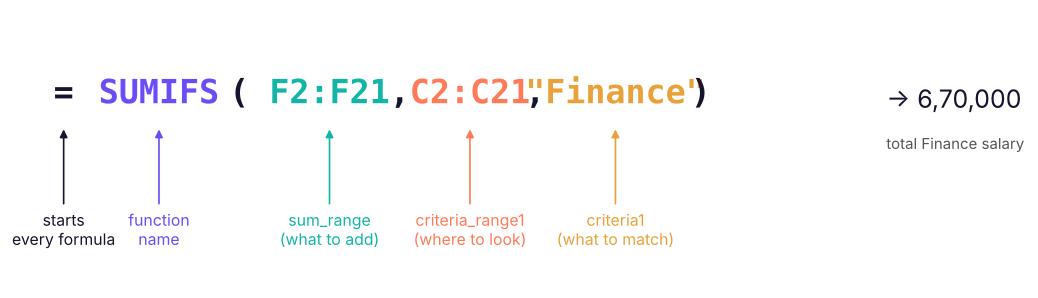
Anatomy of a function call. Arguments in square brackets are optional.
When you type a function name and (, Excel shows a tooltip with its syntax, for example SUMIFS(sum_range, criteria_range1, criteria1, [criteria_range2, criteria2], …). Press Ctrl + A after the bracket to open the Function Arguments dialog, which explains every argument and previews the result.
Operators and order of calculation
Operator
Meaning
Example
Result
+ - * /
Add, subtract, multiply, divide
=10+4*2
18
^
Power
=2^10
1024
%
Percent
=500*18%
90
&
Join text
="Q"&2
Q2
= <> > < >= <=
Comparison, returns TRUE/FALSE
=B2>=100
TRUE or FALSE
:
Range
A1:A10
10 cells
,
Union (inside functions)
=SUM(A1:A3,C1:C3)
Adds both ranges
Excel follows the usual maths order, remembered as BODMAS/PEMDAS: brackets, then ^, then * and /, then + and -, then &, then comparisons.
XOrder of operations
A
B
C
1
Formula
Result
Why
2
=10+4*2
18
Multiply first: 10 + 8
3
=(10+4)*2
28
Brackets first: 14 × 2
4
=2^3^2
64
Excel works left to right: (2^3)^2 = 64
5
=-2^2
4
Negation before power in Excel: (-2)^2 = 4
6
=100*(1+18%)
118
Add 18% GST
B2=10+4*2
B3=(10+4)*2
B4=2^3^2
B5=-2^2
B6=100*(1+18%)
Watch out`-2^2` is 4 in Excel
In maths -2² is −4, but Excel applies the minus sign first. Write =-(2^2) if you mean −4. This catches people in finance formulas.
Cell references: relative, absolute and mixed
When you copy a formula, Excel adjusts its references relative to where you paste it. Usually that is exactly what you want. Sometimes a reference must stay fixed, for example a tax rate in one cell. A $ sign locks the part after it.
Reference
Copy down
Copy right
Name
B2
B3, B4 …
C2, D2 …
Relative
$B$2
stays $B$2
stays $B$2
Absolute
B$2
stays row 2
C$2, D$2 …
Mixed (row locked)
$B2
B3, B4 …
stays column B
Mixed (column locked)
Press F4 while the cursor is on a reference to cycle B2 → $B$2 → B$2 → $B2 → B2.
Absolute reference: one rate for every row
XGST rate in one input cell (G2) — formula in D2 is =B2*C2*$G$2, copied down
A
B
C
D
E
F
G
1
Item
Qty
Price
GST amount
Total
GST rate
2
Notebook
10
45
81.00
531.00
18%
3
Pen pack
25
60
270.00
1,770.00
4
Stapler
4
180
129.60
849.60
D2=B2*C2*$G$2
E2=B2*C2+D2
D3=B3*C3*$G$2
E3=B3*C3+D3
D4=B4*C4*$G$2
E4=B4*C4+D4
The GST rate lives in one input cell (yellow). Because $G$2 is absolute, every copied formula still points to it. Change the rate once and every total updates.
Mixed references: the multiplication table test
A classic interview question: write one formula in B2 that can be copied across and down to fill a multiplication table.
XOne formula, =$A2*B$1, filled across and down
A
B
C
D
E
F
1
×
1
2
3
4
5
2
1
1
2
3
4
5
3
2
2
4
6
8
10
4
3
3
6
9
12
15
5
4
4
8
12
16
20
6
5
5
10
15
20
25
B2=$A2*B$1
C2=$A2*C$1
D2=$A2*D$1
E2=$A2*E$1
F2=$A2*F$1
Each pattern is copied down/across to the other cells in its column.
$A2 always uses column A (the row header) and B$1 always uses row 1 (the column header). The same idea is used for price × discount grids, sales × commission tables, and loan EMI tables.
XThe same table in formula view
Formula view (Ctrl + `)
A
B
C
D
1
×
1
2
3
2
1
=$A2*B$1
=$A2*C$1
=$A2*D$1
3
2
=$A3*B$1
=$A3*C$1
=$A3*D$1
4
3
=$A4*B$1
=$A4*C$1
=$A4*D$1
References to other sheets and workbooks
Reference
Meaning
=Sales!B2
Cell B2 on the sheet named Sales
='Sales 2026'!B2
Quotes are needed when the sheet name has spaces
=SUM(Jan:Mar!B2)
A 3D reference: B2 on every sheet from Jan to Mar
=[Budget.xlsx]Plan!C5
Another workbook (an external link; Data → Edit Links manages them)
Aggregate functions
Aggregate functions turn many values into one number. The examples below use the 20-row employee table stored on a sheet named Emp (columns: A emp_id, B name, C department, D city, E join_date, F salary, G rating).
XAggregate functions on Emp (salary in F2:F21, rating in G2:G21)
Anything not empty (numbers, text, errors, "" from formulas)
Truly empty cells
COUNTBLANK
Empty cells and cells with ""
Everything else
SUM, AVERAGE, MIN, MAX
Numbers
Text and blanks in ranges
MEDIAN
Middle value of sorted numbers
Text and blanks
MODE.SNGL
Most frequent number
Text
SMALL(range,k), LARGE(range,k)
k-th smallest or largest
Text and blanks
TipAVERAGE ignores blanks but not zeros
A blank cell is left out of the average; a zero is counted. If "no data" is stored as 0, your average will be too low. Leave missing values blank, or use AVERAGEIF(range,"<>0").
2026 updateMEDIAN vs AVERAGE in salary data
Salaries are usually skewed by a few high earners, so the median describes a "typical" employee better than the average. You will meet this again in Statistics (ML track, Lesson 1).
Conditional aggregation: the IFS family
These are the most used analysis functions in Excel. They answer questions such as "total sales in the North region for Technology in 2025".
Finance headcount: 7
Total Finance salary: 670,000
Joined 2024 or later: 6
Writing criteria correctly
Criteria
Meaning
"Finance"
Equal to Finance (not case-sensitive)
"<>Finance"
Not equal to Finance
">=4"
Greater than or equal to 4 (operator and number inside quotes)
">="&H1
Compare with the value in H1 (join with &)
">="&DATE(2024,1,1)
Compare with a date
"*pune*"
Contains "pune"
"A*" / "*a"
Starts with A / ends with a
"?????"
Exactly five characters
""
Blank cells
"<>"
Non-blank cells
TipBuild a summary table with one formula
Put departments in A2:A6 and the formula =SUMIFS(Emp!$F$2:$F$21,Emp!$C$2:$C$21,$A2) in B2, then copy down. The $ signs keep the data ranges fixed while $A2 moves to each department. In Microsoft 365 you can produce the department list itself with =UNIQUE(Emp!C2:C21) (Lesson 6).
XDepartment summary built with SUMIFS and COUNTIFS
A
B
C
D
E
1
Department
Headcount
Total salary
Average salary
% of payroll
2
Finance
7
670,000
95,714
33.9%
3
HR
6
576,000
96,000
29.1%
4
IT
1
112,000
112,000
5.7%
5
Operations
2
261,000
130,500
13.2%
6
Sales
4
359,000
89,750
18.1%
7
Total
20
1,978,000
98,900
100.0%
B2=COUNTIFS(Emp!$C$2:$C$21,$A2)
C2=SUMIFS(Emp!$F$2:$F$21,Emp!$C$2:$C$21,$A2)
D2=C2/B2
E2=C2/$C$7
B7=SUM(B2:B6)
C7=SUM(C2:C6)
E7=SUM(E2:E6)
Each pattern is copied down/across to the other cells in its column.
This little table is exactly what a pivot table does (Lesson 8), but with formulas you control every cell, which is useful for fixed report layouts.
SUBTOTAL and AGGREGATE: totals for filtered data
SUM adds every row, including rows hidden by a filter. SUBTOTAL adds only visible rows, so the total changes as you filter.
=SUBTOTAL(function_num, range)
function_num (ignores filtered rows)
101–111 also ignore manually hidden rows
Function
1
101
AVERAGE
2
102
COUNT
3
103
COUNTA
4
104
MAX
5
105
MIN
9
109
SUM
AGGREGATE does the same and can also ignore error values:
=AGGREGATE(9, 6, D2:D100) sums D2:D100 ignoring errors (option 6). =AGGREGATE(14, 6, D2:D100, 2) returns the 2nd largest value ignoring errors (14 = LARGE).
XAGGREGATE ignores the #DIV/0! error that breaks SUM
A
B
1
Value
2
120
3
#DIV/0!
4
80
5
SUM →
#DIV/0!
6
AGGREGATE(9,6,…) →
200
A3=10/0
B5=SUM(A2:A4)
B6=AGGREGATE(9,6,A2:A4)
Common formula errors and how to fix them
Error
Example
Fix
#DIV/0!
=C2/B2 with B2 = 0
=IFERROR(C2/B2,0) or =IF(B2=0,"",C2/B2)
#VALUE!
=A2+B2 where A2 is text
Convert text to numbers; check for spaces
#REF!
Deleted a referenced row
Undo, or rewrite the formula
#NAME?
=SUMIFS(…,Finance) without quotes
Put text criteria in quotes
Circular reference
=SUM(A1:A10) typed in A10
Move the total outside the range
Wrong total after sorting
Mixed relative/absolute references
Lock ranges with $
Formulas → Formula Auditing helps: Trace Precedents draws arrows to the cells a formula uses, Trace Dependents to cells that use it, Show Formulas (Ctrl + `) shows every formula, and Evaluate Formula steps through a calculation (Lesson 11).
Do it with AIDo it with AI
Paste a formula into Copilot or a chat assistant and ask: "Explain this Excel formula step by step and tell me what would make it return an error: =SUMIFS(Sales!$F:$F,Sales!$C:$C,$A2,Sales!$E:$E,">="&$B$1)." Use AI to explain and draft formulas, then check the result on a few rows you can verify by hand.
Summary
Key takeaways
Formula = any calculation starting with =; function = a named calculation such as SUM.
SUMIFS(sum_range, criteria_range, criteria, …) and COUNTIFS answer most business questions.
Criteria with operators go in quotes and join cell values with &: ">="&H1.
SUBTOTAL(109,…) sums only visible rows; AGGREGATE can also ignore errors.
Quick quiz6 questions · tap an answer to check it
1. You copy =B2*$E$1 from C2 to C5. What is the formula in C5?
Answer: B. B2 is relative and moves to B5; $E$1 is absolute and stays.
2. Which formula, typed in B2 and copied across and down, builds a multiplication table with headers in row 1 and column A?
Answer: C. Column A is locked for the row header, and row 1 is locked for the column header.
3. A range contains 10, "abc", blank, 25, TRUE (typed). What does COUNT return?
Answer: A. COUNT counts only numbers in a range: 10 and 25.
4. Which formula totals Sales (D) where Region (B) is "North" AND Category (C) is "Technology"?
Answer: B. SUMIFS takes the sum range first, then pairs of criteria range and criteria.
5. How do you count values in A2:A100 greater than the value in H1?
Answer: C. The operator is text and is joined to the cell value with &.
6. You filter a table to show only Pune. Which total updates to show only Pune's sales?
Answer: B. SUBTOTAL 9/109 ignores rows hidden by a filter.
ExerciseSuperstore questions with formulas
Open superstore_sales.csv in Excel. Using only aggregate and IFS functions, find: (1) total sales; (2) number of order lines in the West region; (3) total profit for Technology in 2025; (4) average discount for Furniture; (5) the largest single order-line sale in the South.
Show solution
Assuming columns: J region, L category, O sales, Q discount, R profit and B order_date (check your own column letters):
(1) =SUM(O:O)
(2) =COUNTIFS(J:J,"West")
(3) =SUMIFS(R:R,L:L,"Technology",B:B,">="&DATE(2025,1,1),B:B,"<="&DATE(2025,12,31))
(4) =AVERAGEIFS(Q:Q,L:L,"Furniture")
(5) =MAXIFS(O:O,J:J,"South")
Check your answers in Python with pandas (Python track, Lesson 22) or with a pivot table (Lesson 8): they must match exactly.
Interview cornerQuestions you may be asked
Q: What is the difference between COUNT, COUNTA and COUNTBLANK?
COUNT counts numeric cells, COUNTA counts every non-empty cell (including text and formulas returning ""), COUNTBLANK counts empty cells and cells containing "".
Q: When would you use a mixed reference?
When a formula is copied in two directions and must keep either the row or the column fixed, for example a price × quantity grid or a commission table: =$A2*B$1.
Q: Why use SUMIFS instead of SUMIF?
SUMIFS supports multiple conditions, has a consistent argument order (sum range first), and works for one condition too, so one pattern covers every case.
Q: How do you total only visible rows after filtering?
Use SUBTOTAL(109, range) or AGGREGATE(9, 5, range); the Table Total Row does this automatically.
Practise more online
Free, trusted places to test yourself on this topic. Links open the original site in a new tab.