Lookup Functions: VLOOKUP, XLOOKUP and INDEX-MATCH
Bring data together from different tables. Master VLOOKUP and HLOOKUP (exact and approximate match), the modern XLOOKUP, the flexible INDEX + MATCH combination (including two-way and reverse lookups), OFFSET, consolidating several sheets, CHOOSE, and how to troubleshoot
● Live classes 4–5✦ Excel for Microsoft 365, 2026Intermediate⏱ 120 min
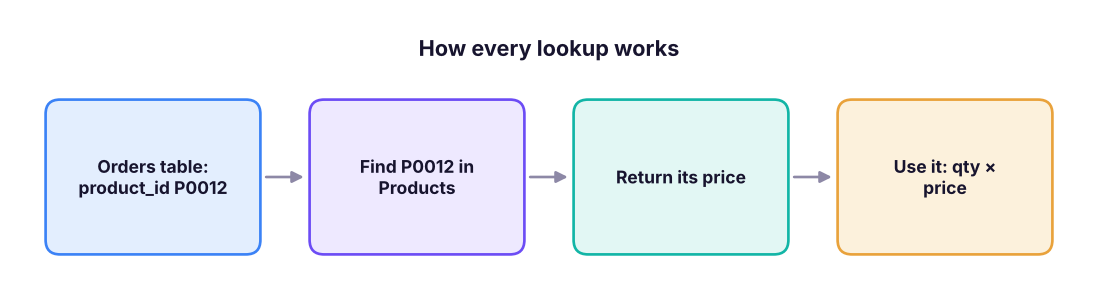
Business data is split across tables: orders in one, products in another, customers in a third. A lookup fetches a value from one table using a key that both tables share, such as a product ID or employee ID.
A lookup takes a key from one table, finds it in another table, and returns a value from the same row.
TipYou are already learning SQL joins
A lookup is a left join for one column at a time: keep every row of the main table and bring in matching information from the other table. You will see the same idea as JOIN in SQL (SQL Lesson 8), merge() in pandas, and relationships in Power BI.
We will use this lookup table on a sheet called Prod:
table_array: the table to search; the key must be in its first column.
col_index_num: which column of that table to return (1 = first column).
range_lookup: FALSE (or 0) for an exact match. Use TRUE only for approximate matching on sorted bands.
XOrder lines looking up product details with VLOOKUP
A
B
C
D
E
F
1
Order
Product ID
Qty
Product =VLOOKUP(B2,Prod!$A$2:$E$7,2,FALSE)
Price
Amount
2
1001
P103
2
Laser Printer
12,900
25,800
3
1002
P101
6
Office Chair
4,500
27,000
4
1003
P105
1
Smartphone
21,999
21,999
5
1004
P104
20
Notebook Pack
240
4,800
6
1005
P109
3
#N/A
#N/A
#N/A
D2=VLOOKUP(B2,Prod!$A$2:$E$7,2,FALSE)
F2=C2*E2
Each pattern is copied down/across to the other cells in its column.
Row 6 shows #N/A because P109 does not exist in the product table. That is the correct answer: the key is not there.
Common mistakesThe four classic VLOOKUP mistakes
Forgetting FALSE: the default is approximate match, which silently returns a wrong row for unsorted data.
Not locking the table: A2:E7 copied down becomes A3:E8, so the last rows are missed. Use $A$2:$E$7 or a Table name.
Hard-coded column numbers: inserting a column inside the table changes which column 4 means. Use MATCH for the column number, or XLOOKUP.
Key not in the first column: VLOOKUP cannot look to the left (use INDEX + MATCH or XLOOKUP).
Approximate match: bands and slabs
With TRUE, VLOOKUP finds the largest value less than or equal to the lookup value. The first column must be sorted ascending. This is perfect for tax slabs, commission tiers, discount bands and grades.
XApproximate match for commission tiers
A
B
C
D
E
F
G
1
Sales from
Commission
Rep
Sales
Rate
Commission
2
0
0%
Asha
85,000
0%
0
3
100000
3%
Ravi
240,000
3%
7,200
4
250000
5%
Meera
250,000
5%
12,500
5
500000
7%
Kabir
610,000
7%
42,700
6
1000000
10%
Zoya
1,200,000
10%
120,000
F2=VLOOKUP(E2,$A$2:$B$6,2,TRUE)
G2=E2*F2
Each pattern is copied down/across to the other cells in its column.
Ravi's 2,40,000 falls between 1,00,000 and 2,50,000, so he gets the 1,00,000 row: 3%. Meera's 2,50,000 matches the 2,50,000 row exactly: 5%.
HLOOKUP
HLOOKUP is VLOOKUP turned sideways: it searches the first row and returns a value from a row below. Use it when data runs across columns (for example months as headers).
XHLOOKUP across a horizontal table
A
B
C
D
E
F
G
H
1
Month
Jan
Feb
Mar
Apr
Find month
Mar
2
Target
120
130
145
150
Target →
145
3
Actual
118
136
139
162
Actual →
139
H2=HLOOKUP(H1,$A$1:$E$3,2,FALSE)
H3=HLOOKUP(H1,$A$1:$E$3,3,FALSE)
XLOOKUP: the modern lookup (Microsoft 365 / Excel 2021+)
The fourth row returns three columns at once: the result spills across C5:E5.
XLOOKUP for bands (no sorting needed)
match_mode = -1 returns the exact match or the next smaller item, like VLOOKUP's TRUE, but the table does not need to be sorted:
=XLOOKUP(E2, $A$2:$A$6, $B$2:$B$6, , -1) gives the same commission rates as the approximate VLOOKUP above.
TipXMATCH
XMATCH is the modern version of MATCH with the same match and search modes as XLOOKUP. =XMATCH("P105",Prod!A2:A7) → 5.
INDEX and MATCH
Before XLOOKUP, professionals used INDEX + MATCH, and you will still see it everywhere. It works in every Excel version and is very flexible.
=INDEX(array, row_num, [col_num]) returns the value at a position.
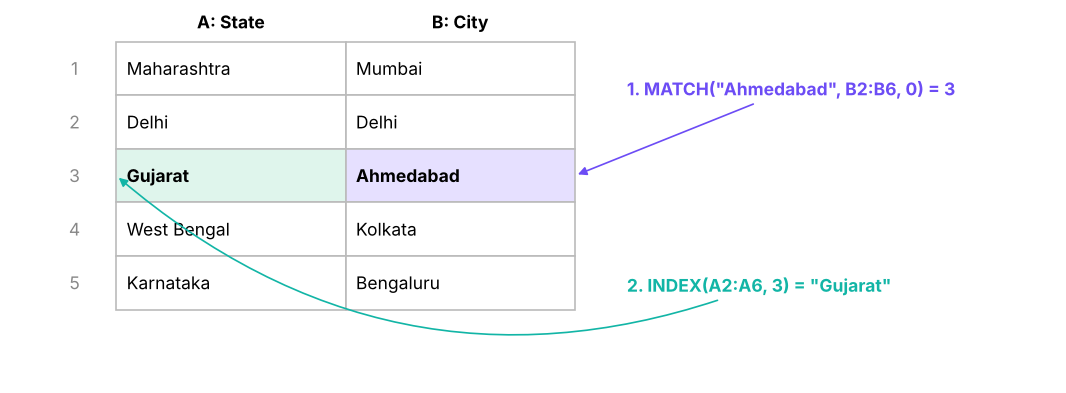
=MATCH(lookup_value, lookup_array, [match_type]) returns the position of a value. Use 0 for exact match.
XINDEX returns a value at a position; MATCH returns the position of a value
A
B
C
D
E
F
1
State
City
Population 2011 (mn)
Formula
Result
2
Maharashtra
Mumbai
18.4
=INDEX(A2:C6,2,1)
Delhi
3
Delhi
Delhi
16.3
=MATCH("Ahmedabad",B2:B6,0)
3
4
Gujarat
Ahmedabad
6.4
=MATCH("Population 2011 (mn)",A1:C1,0)
3
5
West Bengal
Kolkata
14.1
=INDEX(C2:C6,MATCH("Kolkata",B2:B6,0))
14.1
6
Karnataka
Bengaluru
8.5
=INDEX(A2:A6,MATCH("Ahmedabad",B2:B6,0))
Gujarat
F2=INDEX(A2:C6,2,1)
F3=MATCH("Ahmedabad",B2:B6,0)
F4=MATCH("Population 2011 (mn)",A1:C1,0)
F5=INDEX(C2:C6,MATCH("Kolkata",B2:B6,0))
F6=INDEX(A2:A6,MATCH("Ahmedabad",B2:B6,0))
Reverse (left) lookup
In the table above, City is in column B and State is in column A. VLOOKUP cannot return a column to the left of the key, but INDEX + MATCH can: =INDEX(A2:A6, MATCH("Ahmedabad", B2:B6, 0)) → Gujarat.
INDEX + MATCH: MATCH finds the row number of the city; INDEX returns the state on that row.
Two-way (matrix) lookup
INDEX can take a row and a column number. Use one MATCH for each to look up the intersection of a row and a column, for example an employee's salary from a table where both the employee and the field are chosen in drop-downs.
Because the headers in row 2 (JobTitle, Salary) are matched by MATCH, you can change a header to City and the formula returns cities without editing it. The XLOOKUP version nests one XLOOKUP inside another: =XLOOKUP($G3,$A$2:$A$6,XLOOKUP(H$2,$B$1:$E$1,$B$2:$E$6)).
INDEX + MATCH with multiple conditions
To match on two columns at once (for example Region and Product), multiply the conditions inside MATCH:
=INDEX(F2:F9, MATCH(1, (B2:B9="North")*(C2:C9="Tablet"), 0)) → returns the revenue for the North + Tablet row. In Microsoft 365 this works as a normal formula; in older Excel press Ctrl + Shift + Enter. With XLOOKUP: =XLOOKUP(1,(B2:B9="North")*(C2:C9="Tablet"),F2:F9).
OFFSET and consolidating worksheets
In class we also used lookups to consolidate data: pull values from several tables or sheets into one summary. Three tools do this job.
OFFSET: a value or range by position
=OFFSET(reference, rows, cols, [height], [width]) starts at reference, moves down rows and right cols, and returns that cell (or a range of height × width). Combined with MATCH it does the same two-way lookup as INDEX + MATCH. The table below holds month-end share prices (illustrative numbers for fictional companies).
XTwo-way lookup of a share price with INDEX + MATCH and with OFFSET + MATCH
Each pattern is copied down/across to the other cells in its column.
The last formula shows OFFSET's real strength: OFFSET($B$1, COUNT(B2:B6)-2, 0, 3, 1) is a range of the last three prices, so the average updates automatically when a new month is added. The same idea builds dynamic named ranges and charts (Lesson 9).
Common mistakesOFFSET is volatile
OFFSET (like INDIRECT, TODAY and RAND) recalculates every time anything in the workbook changes. A few hundred OFFSETs are fine; tens of thousands slow a workbook down. For lookups prefer INDEX + MATCH or XLOOKUP, and for growing ranges prefer an Excel Table.
Consolidating several sheets into one
Situation
Best tool
How
Same layout on every sheet (Jan, Feb, Mar…) and you need totals
3-D reference
=SUM(Jan:Mar!B2) adds cell B2 on every sheet from Jan to Mar (Lesson 4)
Same kind of data, but rows in a different order on each sheet
Data → Consolidate
Choose Sum, add each sheet's range, tick Top row and Left column, optionally Create links to source data
Different tables that share a key (city code, product ID)
Lookups
Bring each column in with XLOOKUP or INDEX + MATCH, as in the class tasks below
Many files every month
Power Query
Get Data → From Folder, then Append (Lesson 12)
Class practice: city tables
These are the consolidation tasks from the live class. Table 1 maps cities to states and population; Table 2 maps city codes to cities.
XConsolidation tasks: state from city, population from city code, grade from marks
Each pattern is copied down/across to the other cells in its column.
The state and city-code answers use INDEX + MATCH wrapped in IFNA; =XLOOKUP(G2,B2:B7,C2:C7,"Not found") gives the same result in Microsoft 365. The grade lookup uses approximate match (TRUE): VLOOKUP finds the largest "Min marks" that is less than or equal to the marks, so the grade table must be sorted ascending. This is the classic use of approximate match: tax slabs, commission bands and grades.
CHOOSE, and VLOOKUP with CHOOSE
=CHOOSE(index_num, value1, value2, …) returns the item at a position.
The last example gives the Indian financial-year quarter (April–June = Q1), which a plain ROUNDUP(MONTH()/3) cannot do.
VLOOKUP + CHOOSE was the old trick for a left lookup: CHOOSE({1,2}, B2:B6, A2:A6) builds a virtual two-column table with City first and State second, so VLOOKUP can search it:
Today, prefer XLOOKUP or INDEX + MATCH: they are easier to read and faster.
Troubleshooting #N/A
Cause
How to check
Fix
The key really is missing
Search the lookup column with Ctrl + F
Return a message: IFNA(…,"Not found") or XLOOKUP's 4th argument
Extra spaces
=LEN(A2) is longer than expected
TRIM both sides, or XLOOKUP(TRIM(B2),TRIM(Prod!A2:A7),…)
Number vs text (101 vs "101")
=ISTEXT(B2) differs from the lookup column
Convert one side: VALUE() or TEXT(…,"0")
Approximate match on unsorted data
Wrong but no error
Use exact match (FALSE / 0)
Range not locked
Errors appear only in lower rows
Add $ or use a Table
Invisible characters
=CODE(RIGHT(B2)) returns 160 or 10
SUBSTITUTE and CLEAN
2026 updateLookups in 2026
XLOOKUP and XMATCH are now the standard; use VLOOKUP only when sharing files with very old Excel versions.
FILTER returns all matching rows, not just the first (Lesson 6).
For joining large tables regularly, Power Query → Merge Queries (Lesson 12) is faster and repeatable, and it is exactly a SQL join.
Case: pricing the Superstore order lines
Suppose the order lines arrive without a price and you must look it up from the product master (products.csv). This is a lookup on 6,323 rows. pandas does the same as XLOOKUP with merge:
Zero unmatched IDs tells you every order line found its product: the same check you should do in Excel with =COUNTIF(price_column,"#N/A") or =SUM(--ISNA(price_column)).
Summary
Key takeaways
Lookups bring columns from one table into another through a shared key, like a SQL left join.
VLOOKUP: key in the first column, column number counted from 1, FALSE for exact match, lock the table with $.
Approximate match (TRUE / match_mode −1) is for sorted bands: tax slabs, commissions, grades.
XLOOKUP is exact by default, looks left, has a built-in "not found" value, returns several columns and can search from the end.
INDEX returns a value at a position; MATCH finds the position. Together they do reverse and two-way lookups in any Excel version.
Most #N/A errors come from missing keys, spaces, or number-vs-text mismatches.
Quick quiz6 questions · tap an answer to check it
1.=VLOOKUP("P103",A2:E7,4,FALSE) returns a value from which column of the range?
Answer: C. Column index 4 counts from the first column of the table array: A=1, B=2, C=3, D=4.
2. Why does VLOOKUP return the wrong price (not #N/A) for unsorted data?
Answer: A. Without FALSE, VLOOKUP uses approximate match, which assumes sorted data.
3. Which formula returns the State for the city in H2, where State is column A and City is column B?
Answer: B. MATCH finds the row of the city in column B; INDEX returns column A on that row.
4. Sales of 2,40,000 with tiers at 0, 1,00,000, 2,50,000 and 5,00,000 (approximate match). Which tier is used?
Answer: B. Approximate match returns the largest tier less than or equal to the value.
5. What does XLOOKUP's 4th argument do?
Answer: B.if_not_found replaces #N/A with your own value or message.
6. A lookup returns #N/A even though the ID is visible in both tables. Which is NOT a likely cause?
Answer: C. File format does not affect lookups. Spaces, invisible characters and type mismatches are the usual culprits.
ExerciseGrade lookup
Create a grade table: 0 → F, 40 → D, 55 → C, 70 → B, 85 → A. Write a formula that returns the grade for a mark in B2 using (a) VLOOKUP, (b) XLOOKUP and (c) INDEX + MATCH.
Show solution
With the table in E2:F6 (marks ascending):
(a) =VLOOKUP(B2,$E$2:$F$6,2,TRUE)
(b) =XLOOKUP(B2,$E$2:$E$6,$F$2:$F$6,,-1)
(c) =INDEX($F$2:$F$6,MATCH(B2,$E$2:$E$6,1)) (match_type 1 = largest value ≤ B2, needs ascending order).
ExerciseTwo-way lookup
Make a table of 4 regions (rows) × 4 quarters (columns) with sales figures. Add drop-downs for region (H1) and quarter (H2) and return the matching sales value.
Show solution
With regions in A2:A5, quarters in B1:E1 and values in B2:E5:
=INDEX($B$2:$E$5,MATCH($H$1,$A$2:$A$5,0),MATCH($H$2,$B$1:$E$1,0))
or =XLOOKUP($H$1,$A$2:$A$5,XLOOKUP($H$2,$B$1:$E$1,$B$2:$E$5)).
Make the drop-downs with Data Validation → List, source $A$2:$A$5 and $B$1:$E$1.
Interview cornerQuestions you may be asked
Q: What are the limitations of VLOOKUP and how do you overcome them?
It cannot look left, it defaults to approximate match, it breaks when columns are inserted (hard-coded index), and it returns only the first match. Use XLOOKUP or INDEX + MATCH, and FILTER for multiple matches.
Q: Why is INDEX + MATCH considered more flexible than VLOOKUP?
The lookup and return ranges are separate, so it can look left, it is not affected by inserted columns, it supports two-way lookups, and it can be faster on large sheets because it only reads the columns it needs.
Q: How would you look up a value using two criteria?XLOOKUP(1,(range1=x)*(range2=y),return_range), INDEX/MATCH with the same multiplied condition, or a helper column that concatenates the two keys.
Practise more online
Free, trusted places to test yourself on this topic. Links open the original site in a new tab.